How to Read the eBay Seller Hub Traffic Report
- eBay, eBay Seller Tools
- 12 min read
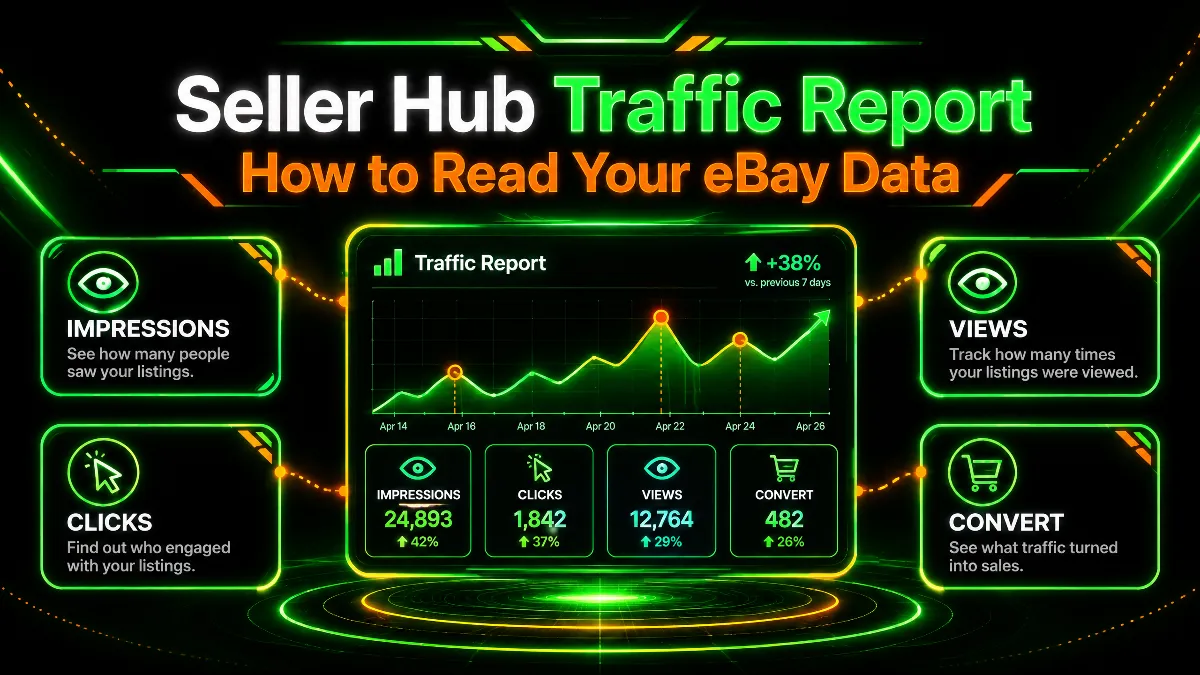
Table of contents
A listing gets 24,000 impressions in a month and sells 21 units. Is that good? Without the two rates in between, nobody knows. Learning how to read eBay Seller Hub traffic report means learning to read those rates as a chain: impressions to clicks, clicks to page views, page views to sales. Each link is a different problem with a different fix, and the report gives you all of them for every listing. Most sellers open it, look at the total impressions line, and close it again.
This guide explains where the traffic report lives, what each metric measures, the difference between eBay impressions vs page views, how to read eBay Seller Hub traffic report per listing to find which link in the chain is broken, and a weekly routine that turns the report into decisions. Our guide on improving eBay listing visibility told you to measure impressions, click-through, and conversion separately. This is where those numbers are.
Key Takeaways
- Main Insight: The traffic report is a funnel with three rates. Low impressions is a ranking problem, low click-through is a search result problem, and low conversion is a listing page problem. The fix for one does nothing for the others, which is why reading the report starts with finding the broken link.
- Strategy Tip: Read direction, not level. A listing’s rates compared with its own last month and with its peers in your catalogue tell you more than any benchmark, because eBay publishes no benchmarks. Direction is the whole method.
- User Benefit: Sellers who read the report this way stop rewriting titles on listings with a conversion problem and stop cutting prices on listings with a visibility problem.
Where the Report Lives in the Seller Hub Performance Tab
In Seller Hub, the Performance tab holds Sales, Traffic, and the seller level dashboard. Traffic is the report this guide covers. At the time of writing it presents account totals for the selected period, a trend chart, and a per listing table.
The core metrics are listing impressions, click-through rate, listing page views, and sales conversion rate, with a split between organic and Promoted Listings traffic where you run campaigns. Date ranges cover recent windows with a comparison against the previous period. Layout changes from time to time, so treat the exact column names as the current version rather than a permanent fixture. The method survives the redesigns because the funnel does not change.
The Seller Hub performance tab reports eBay’s own view of the funnel. It is not Google Analytics and it does not show where buyers came from beyond the eBay search and promoted split. What it does show, per listing, is enough to diagnose almost every traffic problem a listing has, which is why the report is worth an hour to learn.
| Metric | What it counts | What it tells you |
|---|---|---|
| Listing impressions | Times the listing appeared in eBay search results | Whether eBay is showing you to buyers |
| Click-through rate | Clicks from search results divided by impressions | Whether buyers who see you choose you |
| Listing page views | Views of the listing page from all sources | Total attention, including direct, external, and promoted |
| Sales conversion rate | Quantity sold divided by page views | Whether the page persuades the buyer |
| Promoted vs organic split | Impressions and views attributed to paid placement | How much of your traffic you are paying for |
eBay Impressions vs Page Views: The Distinction at the Heart of the Report
eBay impressions vs page views is the first thing to get straight. An impression is counted when your listing appears in a set of search results, whether or not anyone scrolls to it. A page view is counted when someone opens the listing page. Page views come from search clicks, but also from direct links, external traffic, your store pages, promoted placements, and buyers returning to a listing they viewed before. That is why page views often exceed clicks from search in the report, and why click-through rate is calculated against search impressions rather than against page views. Getting this straight is half of reading the report.
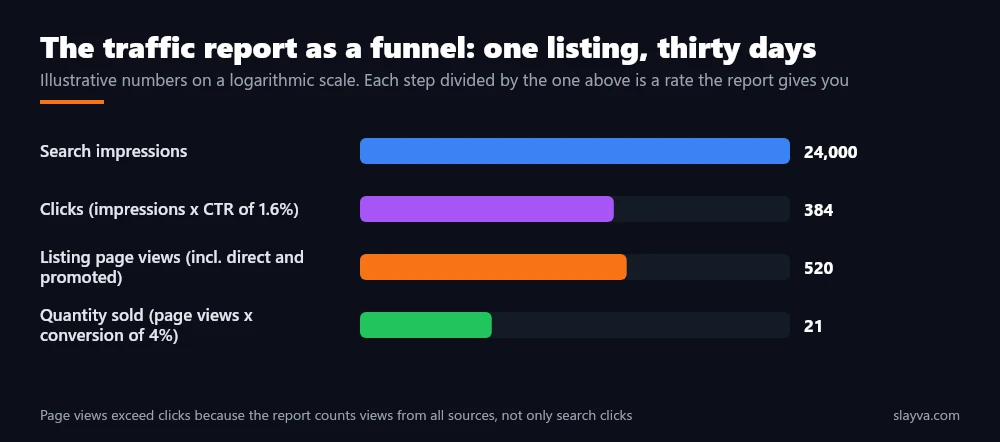
The practical consequence of eBay impressions vs page views: a listing with rising page views and flat impressions is being found outside search, through a store, a link, or a promotion. A listing with rising impressions and flat page views is being shown and ignored. The same headline growth in one metric means opposite things depending on the other, and reading the report well is largely the habit of reading them together.
eBay Listing Click Through Rate: The Search Result
eBay listing click through rate is the ratio that measures your search result, not your listing page. When a buyer scans results, they see the main photo, the title, the price, the shipping line, and trust signals such as feedback and Top Rated status. Those five elements decide the click.
A low eBay listing click through rate with healthy impressions means eBay is ranking you and buyers are choosing someone else in the same results. The fixes are all on the search result: the title, covered in our eBay listing titles guide, the main photo, the price shown, and the shipping offer. Rewriting the description does nothing for this rate because the buyer never reached it. This is the most common error we see from sellers new to the report.
eBay Sales Conversion Rate: The Listing Page
The eBay sales conversion rate report measures the page. The buyer arrived and either bought or left. Low conversion with healthy page views points at price against competitors, shipping cost revealed late, a description that raises doubts, missing item specifics, weak secondary photos, or a returns policy that reads as risky. Our guides on writing eBay item descriptions and the eBay returns policy for sellers address the page side. Conversion is also where seller reputation lands, so negative feedback shows up here before it shows anywhere else. Conversion is the last link in the chain.
How to Read eBay Seller Hub Traffic Report Per Listing
The account totals are context. The per listing table is where decisions happen. Here is how to read eBay Seller Hub traffic report at the listing level, in the order we use on managed accounts.
- Set the comparison: Choose the last 31 days against the previous 31, or a like for like window if a promotion or a season falls in one of them.
- Sort by impressions: The top twenty listings carry most accounts. Confirm their three rates are stable before looking anywhere else. A drop on a top listing outweighs a fix on a bottom one.
- Find the outliers: For each listing, compare its click-through and conversion with the median of similar listings in your catalogue. The report shows you the rates. You supply the peer group.
- Name the broken link: Low impressions, low click-through, or low conversion. Only one is usually broken at a time on a given listing.
- Log one change: Apply a single fix matched to the broken link, note the date, and revisit next week. This turns the report into a decision tool rather than a scoreboard.
The Five Patterns You Will Meet
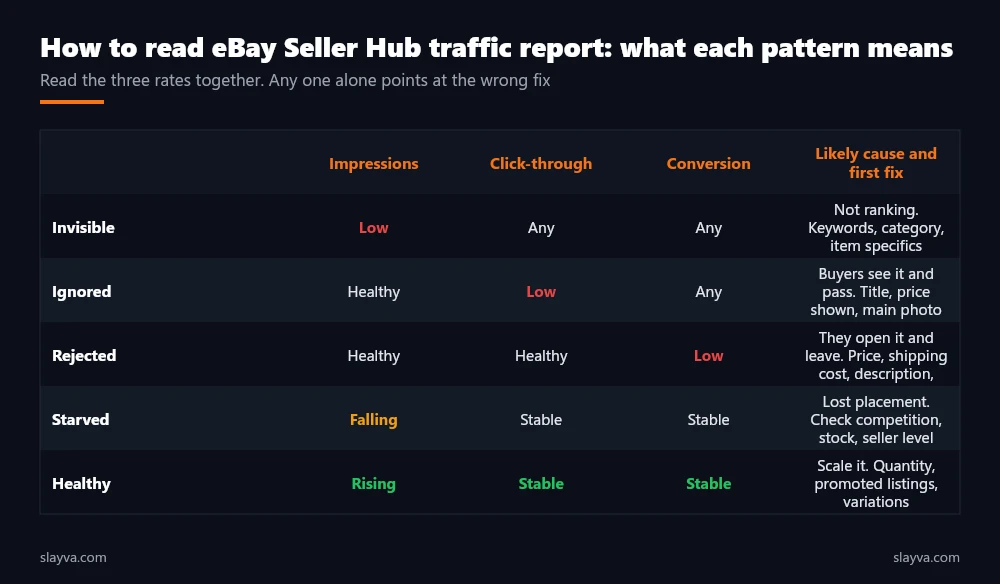
Five combinations cover nearly every listing. Invisible: impressions are low, so nothing downstream matters yet, and the work is keywords, category, and item specifics, with free methods in our eBay keyword research guide. Ignored: impressions are fine and click-through is low, so the search result needs work. Rejected: impressions and click-through are fine and conversion is low, so the page needs work.
Starved: impressions are falling while rates hold, which usually means lost placement to competition, a stock issue, or a seller level change described in our guide on lowering eBay defect rate. Healthy: everything is rising or stable, and the question becomes how to scale it with quantity, variations, or promotion. Five patterns, three rates, and that is most of the report.
A listing rarely has three problems. It has one broken rate and two healthy ones, and the report tells you which. The mistake is fixing all three at once and learning nothing.
| Broken rate | Where the buyer is | Fixes that apply | Fixes that do nothing |
|---|---|---|---|
| Impressions | Not seeing you | Keywords, category, item specifics, seller level | Description, secondary photos, returns policy |
| Click-through | Seeing you in results | Title, main photo, price shown, shipping line | Description, item specifics beyond title |
| Conversion | On your listing page | Price, shipping, description, photos, specifics, policies, feedback | Title keywords, category |
Reading the Promoted Listings Split
If you run Promoted Listings, the report separates paid and organic impressions and views. Two readings matter. First, the share: if most of a listing’s page views are promoted, the organic listing is weak and you are renting visibility you are able to earn. Second, the conversion by source: promoted views that convert well below organic views suggest the campaign is buying the wrong audience or the wrong placement. Our analysis of whether eBay promoted listings are worth it covers how to judge the spend, and the traffic report is the only way to get the numbers that analysis needs.
A Weekly Routine: The Traffic Report in Ten Minutes
The Seller Hub performance tab rewards a short, regular reading over an occasional deep one. The routine below takes about ten minutes on a Monday for a catalogue of a few hundred listings, longer for a thousand, and is the version of the routine that survives a busy week.
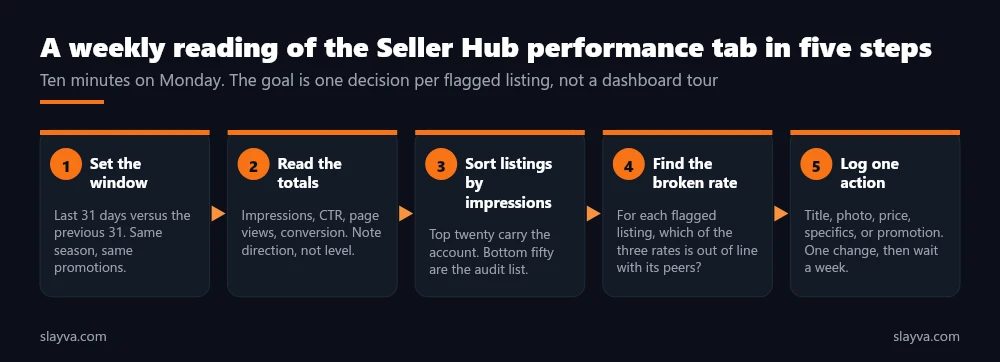
- Set the window: Last 31 days versus the previous 31. Adjust if a promotion or season falls in one window only.
- Read the totals: Impressions, click-through, page views, conversion. Note which moved and in which direction.
- Sort by impressions: Check the top twenty for any rate that fell. Then scan the bottom fifty for listings with impressions but no clicks, or clicks but no sales.
- Name the broken link: For each flagged listing, one of the three rates.
- Log one action: One change per listing, dated, matched to the broken link. Wait a week before judging it, because reading the report includes reading the result of your own change.
Sellers running the routine alongside the sell-through calculation in our guide on how to calculate eBay sell through rate get both halves of the picture: whether buyers are seeing and choosing the listing, and whether the stock behind it is the right quantity. Timing changes also show up here, and our guide on the best time to list on eBay explains why impressions move with the calendar.
| What you see | Do not conclude | Check first |
|---|---|---|
| Impressions doubled, sales flat | The listing is broken | Click-through: were the new impressions relevant searches? |
| Page views up, impressions flat | Search ranking improved | Source split: promoted, store, or external traffic |
| Conversion fell after a price rise | Price is too high | Competitor prices and shipping in the same results |
| Everything fell on the same day | Every listing has a problem | Seller level, stock outs, a category or policy change |
| Top listing lost impressions | Keywords stopped working | Whether a competitor undercut you in the same results |
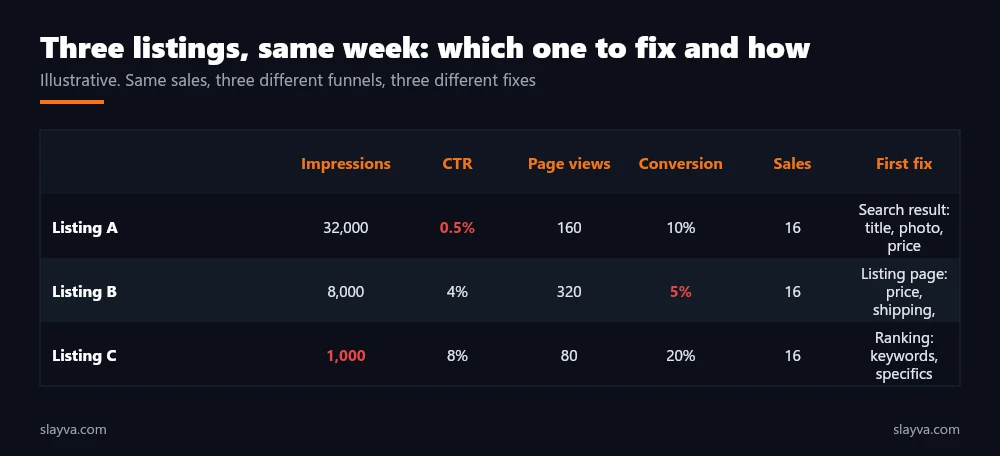
Ratios beat totals. A listing at 800 impressions with a 4 percent click-through and 6 percent conversion is outperforming one at 8,000 impressions with 0.5 percent and 1 percent, and only the report shows you that.
Three Worked Readings
Abstract rules are easier to apply after a few concrete cases. The three below use illustrative numbers from a single 31 day window compared with the previous one.
Reading one: the title fix that was not needed. A listing shows 9,000 impressions, up from 8,400, a click-through of 2.1 percent, unchanged, and conversion down from 5 percent to 2 percent. The seller’s instinct is a title rewrite. The report says the title is doing its job, because impressions and click-through both held. The buyer is reaching the page and leaving. A check of the same search results shows two competitors now offering free shipping on the same item at a similar price. The fix is on the page and the price, not the title.
Reading two: the price cut that was not needed. A listing shows impressions down from 6,000 to 2,200, with click-through and conversion both stable. The seller’s instinct is a price cut. The report says buyers who see the listing still choose it and still buy at the current price. The problem is that far fewer are seeing it. Sorting the account by impressions shows the drop happened across a category on the same date, which points at a seller level change or a category shift, not this listing.
Reading three: the promotion that hid a weak listing. A listing shows page views up from 400 to 1,100, impressions from search flat, conversion down from 4 percent to 1.5 percent. The promoted split shows 650 of the views are paid. The organic listing did not improve. The campaign bought views that convert poorly, and the seller is paying for traffic to a page that needs work before it deserves it. Pause the campaign, fix the page, then relaunch.
Limits of the Report
The Seller Hub performance tab does not show search terms, does not show which competitors appeared beside you, and does not show buyer behaviour on the page. It attributes by eBay’s rules, which change. Numbers for the most recent day or two are often incomplete, which is why a careful reading ignores the last two days of any window.
Treat it as the best available view of the eBay funnel rather than a complete picture, and pair it with the sales report for revenue and with your own stock data for supply. Sellers scaling past a few hundred listings often move the weekly reading into a spreadsheet or a tool, and our eBay automation guide covers which reporting tasks are safe to hand off. Sellers who would rather not run it at all use our eBay account management services, where this reading is part of the weekly work.
Frequently Asked Questions About the eBay Seller Hub Traffic Report
Where is the traffic report in Seller Hub?
Under the Performance tab, alongside Sales and the seller level dashboard, which is the first thing to find. It shows account totals, a trend chart, and a per listing table with impressions, click-through rate, page views, and conversion for the selected date range.
What is the difference between impressions and page views on eBay?
An impression is your listing appearing in a set of search results. A page view is someone opening the listing page from any source. Page views often exceed search clicks because they include direct, store, external, and promoted traffic. Reading eBay impressions vs page views together is the core of the method.
What is a good click-through rate on eBay?
eBay publishes no benchmark, and the rate varies widely by category, price point, and position in results. Compare a listing with its own history and with similar listings in your catalogue rather than with a universal number.
Why did my impressions rise but sales stay flat?
Usually because the new impressions came from broader or less relevant searches, a pattern that the per listing view exposes immediately, so click-through fell. Check the click-through rate for the same period. If it dropped, the extra impressions were not buyers for that item.
Does the report include Promoted Listings traffic?
Yes, and it separates promoted from organic where you run campaigns. Use the split to judge how much of a listing’s visibility you are paying for and whether promoted views convert as well as organic ones.
How often should I check it?
Weekly, with a consistent window and a short routine. Daily readings react to noise. Monthly readings miss a broken top listing for too long. Reading the report well is mostly about consistency.
Does the traffic report affect my seller level?
No. It is a reporting view, and it has no bearing on the seller level evaluation. Seller level is set by defects, cases, and late shipments, evaluated on the 20th of each month under eBay’s seller standards policy. Traffic problems and performance problems are different tracks with different fixes.
Want the weekly reading done and acted on?
We read the traffic report per listing and run it, with the sell-through and performance reviews, on managed accounts every week and turn them into listing changes, not dashboards.
Conclusion
How to read eBay Seller Hub traffic report comes down to reading three rates as a chain. Impressions tell you whether eBay shows you. Click-through tells you whether buyers choose you in results. Conversion tells you whether the page persuades them. Each broken link has its own fixes and its own list of changes that do nothing. Read per listing, compare against the listing’s own history and its peers, name the one broken rate, make one change, and check again next week.
Paired with sell-through for stock and the sales report for revenue, the traffic report is the closest thing eBay gives you to seeing your catalogue through a buyer’s eyes. More eBay analytics and operations guides are in the blog library.

Usman Malik
All posts by Usman MalikNeed this handled for you?
eBay Account Management
Listings, orders, cases and growth, run for you.
See the serviceeBay Suspension Recovery
MC999 and MC011 appeals written and submitted.
See the service- Work out the numbers: eBay Fee Calculator
- Have this problem now? eBay account suspended (MC999)
- Have this problem now? eBay sales dropped