7 Proven Fixes to Speed Up WooCommerce in 2026 That Actually Work
- WooCommerce, WooCommerce Performance & Speed
- 15 min read
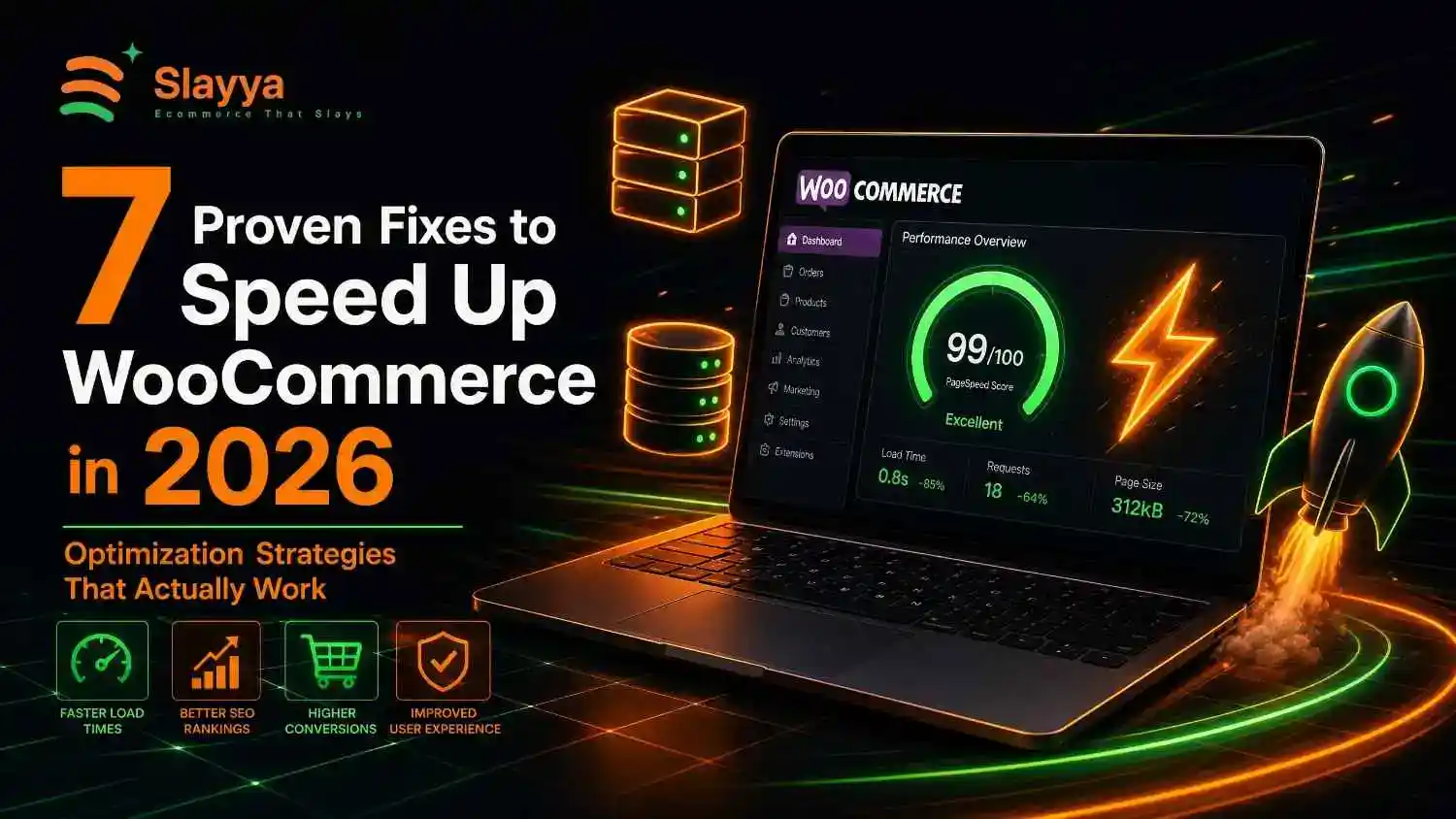
Table of contents
You built your WooCommerce store. You added products. You customized the design. You launched with excitement. Then you visited your site and waited. And waited. And watched potential customers abandon their carts while pages slowly loaded.
A slow WooCommerce store kills sales before customers even see your products. Research shows that 53 percent of mobile visitors leave sites that take longer than three seconds to load. Every additional second of load time reduces conversion rates by approximately 7 percent. Your store could offer the best products at the best prices, but slow speed means customers never stick around long enough to discover that.
The good news is that most speed problems have simple fixes. You do not need developer skills. You do not need expensive tools. You need to identify what slows your store down and apply targeted solutions that actually work.
This guide shows you exactly how to speed up WooCommerce in 2026. You will learn why your store runs slow, which caching plugins actually help, and how to optimize every element from images to database queries. Every fix here works with current versions of WordPress and WooCommerce. Apply these solutions and watch your load times drop and your conversion rates climb.
Key Takeaways
- Main Insight: Most WooCommerce speed problems come from three sources: unoptimized images, poor hosting, and excessive plugins. Fixing these three areas resolves approximately 80 percent of speed issues without advanced technical work.
- Strategy Tip: Start with measurable speed testing before making changes. Test your store speed, apply one fix, then test again. This methodical approach identifies which changes actually improve performance and which do not.
- User Benefit: A faster WooCommerce store directly increases sales. Reducing page load time from five seconds to two seconds can boost conversion rates by 15 to 25 percent. Speed optimization is revenue optimization.
Why Is My WooCommerce Store So Slow 2026: Diagnosing the Problem
Before applying fixes, you need to identify what actually slows your store. Random optimization wastes time. Targeted fixes based on diagnostics produce real results when you speed up WooCommerce.
Speed Testing Tools
Several free tools measure your store speed and identify specific problems. Run tests before making any changes to establish a baseline.
Google PageSpeed Insights: The most important speed testing tool for any effort to speed up WooCommerce. Enter your URL at Google PageSpeed Insights. The tool provides separate scores for mobile and desktop performance. It identifies specific issues with load times, interactivity, and visual stability. Each recommendation includes actionable fix suggestions.
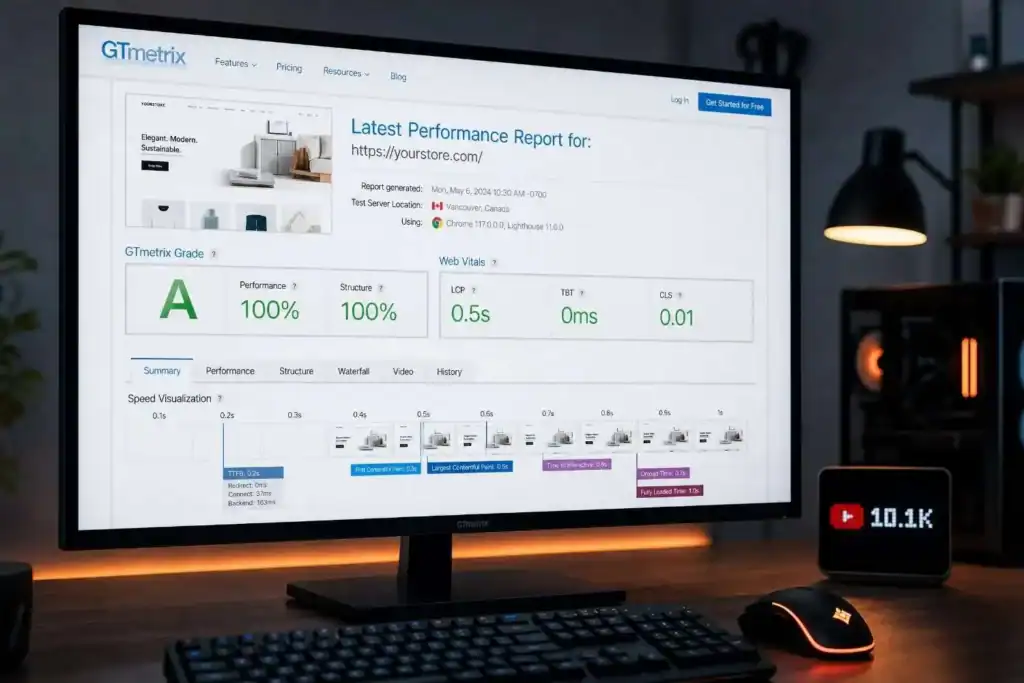
GTmetrix: Provides detailed waterfall charts showing exactly how long each page element takes to load. This visibility helps identify specific bottlenecks like slow-loading images, render-blocking scripts, or oversized fonts. Access at GTmetrix. The waterfall view reveals which plugins or elements consume the most load time.
Pingdom Website Speed Test: Tests from multiple global locations to measure real user experience. Different geographic locations produce different load times based on server location. Test from locations matching your customer base. Access to Pingdom Tools.
WebPageTest: Advanced testing with detailed filmstrip views showing how pages render visually over time. This tool shows what customers actually see as pages load. Crucial for understanding perceived performance when you speed up WooCommerce. Access to WebPageTest.
Common WooCommerce Speed Problems
Most slow WooCommerce stores share common issues. Identify which apply to your store.
Unoptimized Images: Product images uploaded directly from cameras or stock photo sites without compression. Large image files are the single most common reason stores need to speed up WooCommerce. A single uncompressed product image can be 5MB or larger. Multiple product images per page multiply this problem significantly.
Poor Hosting: Shared hosting plans are not optimized for WooCommerce. Cheap hosting packs thousands of websites onto single servers. Resources run thin. Database queries slow down. PHP execution crawls. WooCommerce requires more server resources than simple WordPress sites. Hosting adequate for a blog fails for an online store.
Excessive Plugins: Installing plugins for every feature without considering performance impact. Each plugin adds code that loads on every page. Many plugins load scripts and styles sitewide, even when only needed on specific pages. Too many active plugins force you to speed up WooCommerce through plugin reduction.
Render-Blocking Resources: JavaScript and CSS files that load before page content renders. These resources delay visual display while they load. Eliminating render-blocking resources is essential when working to speed up WooCommerce.
Database Bloat: WooCommerce stores accumulate data over time. Post revisions, abandoned cart data, expired transients, and old order information clog database tables. Bloated databases slow query execution. Regular database cleaning helps speed up WooCommerce significantly.
No Caching: Serving dynamically generated pages for every visitor. Without caching, WordPress runs PHP queries and database calls for every page load. Caching stores pre-built page versions and serves them instantly. Implementing caching is critical to speed up WooCommerce effectively.
Speed Problem Diagnosis Table
| Symptom | Likely Cause | Diagnostic Tool | Fix Priority |
|---|---|---|---|
| Slow first load | No caching, poor hosting | GTmetrix waterfall | Immediate |
| Slow product pages | Large images | PageSpeed Insights | Immediate |
| Slow checkout | Excessive plugins | Plugin audit | High |
| Slow admin panel | Database bloat | Database size check | Medium |
| Mobile speed poor | Render-blocking resources | PageSpeed Insights mobile | High |
| Intermittent slowness | Shared hosting | Hosting resource monitor | Medium |
How to Improve WooCommerce Page Load Time for Beginners: Essential Fixes
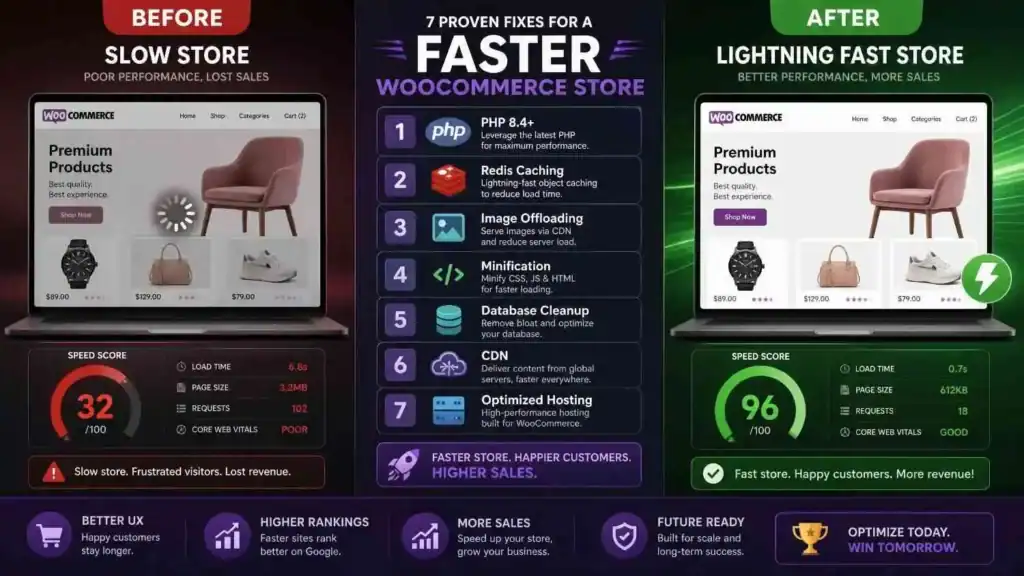
These fixes deliver the biggest speed improvements with the least technical complexity. Start here before moving to advanced optimizations when you speed up WooCommerce.
Choose Fast WooCommerce Hosting
Hosting represents the foundation of store speed. No amount of optimization compensates for slow hosting. Upgrading hosting is often the single most effective way to speed up WooCommerce.
Dedicated WooCommerce Hosting: Several hosts offer plans specifically optimized for WooCommerce. These plans include server-level caching, PHP optimization, and database configuration for ecommerce workloads. Look for hosts offering WooCommerce-specific features rather than generic WordPress hosting.
Key Hosting Features for WooCommerce: NVMe SSD storage for fast database reads. PHP 8.2 or higher for faster code execution. Server-level caching like Varnish or LiteSpeed. Adequate PHP memory limit of 256MB or higher. CDN integration for global content delivery. Automatic backups without performance impact.
Hosting Upgrade Impact: Moving from cheap shared hosting to managed WooCommerce hosting typically reduces page load times by 50 to 70 percent. A store loading in five seconds on shared hosting often loads in two seconds or less on optimized hosting. This single change produces the most dramatic improvement when you speed up WooCommerce.
Best Caching Plugin for WooCommerce to Improve Speed
Caching stores copies of your pages as static HTML files. Visitors receive these pre-built files instead of triggering full WordPress processing. Proper caching dramatically reduces server load and page load times.
WP Rocket: The most popular premium caching plugin with WooCommerce-specific features. Automatically excludes cart, checkout, and account pages from caching. These dynamic pages must remain uncached to function properly. Provides file optimization, lazy loading, and database cleaning. Worth the investment to speed up WooCommerce effectively. Available at WP Rocket.
W3 Total Cache: Free alternative with comprehensive caching options. Includes page cache, database cache, object cache, and browser cache settings. More complex configuration than premium options, but capable of excellent results. The free version is sufficient for many stores working to speed up WooCommerce.
LiteSpeed Cache: Free plugin for sites hosted on LiteSpeed servers. Provides server-level caching that outperforms PHP-level caching plugins. Includes image optimization, CSS and JavaScript minification, and database optimization. The best choice if your host uses LiteSpeed technology. Download from the WordPress Plugin Repository.
Flying Press: Premium plugin focused on simplicity and performance. Automatically configures optimal settings without complex manual configuration. Includes critical CSS generation, font optimization, and lazy loading features. Good choice for beginners wanting to speed up WooCommerce without technical configuration.
Caching Plugin Comparison Table
| Plugin | Price | Best Feature | Difficulty | WooCommerce Support |
|---|---|---|---|---|
| WP Rocket | $59/year | Automatic cart exclusion | Easy | Excellent |
| W3 Total Cache | Free | Comprehensive options | Advanced | Good |
| LiteSpeed Cache | Free | Server-level caching | Medium | Good |
| Flying Press | $60/year | Auto-configuration | Easy | Very Good |
Optimize Images for Faster Loading
Product images dominate page weight on WooCommerce stores. Optimizing images provides immediate speed improvements without affecting visual quality.
Compress Images Before Uploading: Resize images to actual display dimensions before uploading. Product images rarely need to exceed 1200 to 1500 pixels on the longest side. Larger dimensions increase file size without visible quality improvement. Use free tools like TinyPNG or Squoosh for compression.
Use Next-Gen Image Formats: Convert images to WebP format for significantly smaller file sizes at equivalent quality. WebP images average 25 to 35 percent smaller than comparable JPEGs. Use converter tools or plugins that automatically serve WebP images to supporting browsers. This conversion is essential when you speed up WooCommerce through image optimization.
Enable Lazy Loading: Load images only when visitors scroll to them. This dramatically improves initial page load time. Above-the-fold content loads immediately. Below-the-fold images load as needed. WordPress includes native lazy loading since version 5.5. Most caching plugins enhance this with advanced lazy loading features to speed up WooCommerce further.
Image Optimization Plugins: Install dedicated image optimization plugins for automated processing. ShortPixel offers bulk optimization for existing images and automatic optimization for new uploads. Smush provides free image compression with lazy loading features. Imagify balances compression quality with file size reduction. Each helps speed up WooCommerce through automated image management.
Reduce Plugin Bloat
Every active plugin adds code that processes on page loads. Reducing plugins lightens the processing burden and helps speed up WooCommerce.
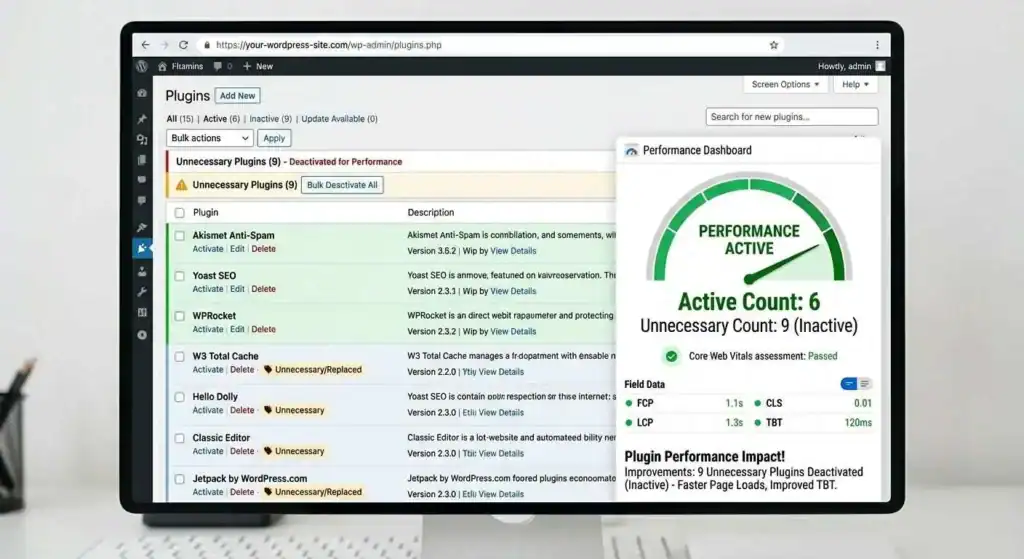
Plugin Audit Process: List all active plugins. Identify which are essential for store operation. Identify which provide minor conveniences. Identify those that have overlapping functionality. Remove plugins in categories two and three unless they serve critical business functions.
Plugin Consolidation: Replace multiple single-purpose plugins with comprehensive alternatives. One well-coded multi-feature plugin loads faster than five single-feature plugins. For example, a comprehensive SEO plugin replaces separate meta tag, schema markup, and sitemap plugins.
Deactivate Unused Plugins: Deactivate plugins that only serve occasional purposes. Social sharing, backup, and reporting plugins often do not need to run continuously. Activate them when needed. Deactivate them when not in use. This selective approach helps speed up WooCommerce without losing functionality entirely.
Test Plugin Impact: Use Query Monitor plugin to measure each plugin’s performance impact. This free tool shows exactly how many database queries each plugin generates and how much time each consumes. Remove the worst offenders first when working to speed up WooCommerce.
WooCommerce Speed Optimization Checklist 2026: Advanced Techniques
These advanced techniques deliver additional speed improvements after essential fixes are applied. They require more technical comfort but produce meaningful results when you speed up WooCommerce.
Database Optimization
WooCommerce databases accumulate bloat over time. Cleaning unnecessary data improves query speed and reduces server load.
Remove Post Revisions: WordPress stores unlimited revisions of each page and product by default. Each revision creates database entries that slow queries. Limit revisions to three or five per post using wp-config.php settings. Delete existing revisions using database optimization plugins.
Clean Expired Transients: Transients store temporary data with expiration times. Expired transients remain in the database until manually removed. These orphaned entries slow database queries. Use WP Rocket’s database cleaning feature or install WP-Optimize to clean transients automatically.
Remove Abandoned Cart Data: WooCommerce stores abandoned cart information indefinitely by default. Old cart data provides no business value while consuming database space. Configure WooCommerce to automatically delete abandoned carts after 30 or 60 days. This setting in WooCommerce under Accounts and Privacy helps speed up WooCommerce through database efficiency.
Optimize Database Tables: Database tables fragment over time with insertions and deletions. Fragmented tables require more disk reads per query. Optimize tables using phpMyAdmin or database optimization plugins. Schedule weekly or monthly optimization for consistent database performance.
Minify and Combine Files
CSS and JavaScript files load on every page. Minimizing these files reduces their size. Combining them reduces the number of server requests.
CSS Minification: Remove unnecessary characters from stylesheet files, including spaces, comments, and formatting. Minified CSS files load faster while functioning identically. Most caching plugins include CSS minification features to speed up WooCommerce.
JavaScript Minification and Deferral: Minify JavaScript files similarly to CSS. Defer non-critical JavaScript to load after page content renders. This prevents JavaScript from blocking visual display. Configure in your caching plugin settings.
Remove Unused CSS and JavaScript: Many plugins load scripts sitewide even when only needed on specific pages. Use asset cleaning plugins like Perfmatters or Asset CleanUp to disable plugins from loading on pages where they are not needed. For example, disable contact form plugin scripts on product pages. This selective loading helps speed up WooCommerce significantly.
Implement Content Delivery Network
A CDN stores copies of your static files on servers worldwide. Visitors download files from the nearest server location rather than your origin server.
CDN Benefits for WooCommerce: Faster load times for international customers. Reduced load on your hosting server. Better handling of traffic spikes. Improved security through DDoS protection built into most CDN services.
Free CDN Options: Cloudflare offers a generous free plan including CDN, basic security, and performance optimization. Setup requires changing DNS nameservers to Cloudflare. The free plan is sufficient for most small to medium stores working to speed up WooCommerce.
Premium CDN Options: BunnyCDN offers pay-as-you-go pricing with excellent performance. StackPath provides edge delivery with security features. KeyCDN offers competitive pricing with global presence. Premium CDNs typically provide faster performance and better support than free options.
Optimize WooCommerce-Specific Elements
Certain WooCommerce features require special optimization attention.
Cart Fragments: WooCommerce uses AJAX to update cart contents dynamically. This feature runs on every page by default, creating server requests even on non-commerce pages. Disable cart fragments on pages without cart functionality using Perfmatters or similar tools. This targeted optimization helps speed up WooCommerce on content pages.
Product Queries: WooCommerce product queries can become slow with large catalogs. Use Elasticsearch or similar search solutions for stores with thousands of products. These specialized search engines handle complex product queries much faster than MySQL. Most managed WooCommerce hosts include Elasticsearch integration.
Order Indexing: Database indexes speed up data retrieval. WooCommerce creates some indexes automatically. Additional custom indexes on frequently queried columns improve performance for large stores. This advanced technique requires database expertise but significantly improves admin panel speed.
Speed Optimization Priority Checklist Table
| Optimization | Impact | Difficulty | Time Required | Priority |
|---|---|---|---|---|
| Upgrade hosting | Very High | Low | 1-3 days | Immediate |
| Install caching | Very High | Low | 1 hour | Immediate |
| Compress images | High | Low | 2-4 hours | Immediate |
| Remove plugins | High | Low | 1 hour | High |
| Enable lazy loading | Medium | Low | 30 minutes | High |
| Implement CDN | Medium | Medium | 2 hours | Medium |
| Clean database | Medium | Low | 1 hour | Medium |
| Minify files | Medium | Low | 30 minutes | Medium |
| Optimize cart fragments | Medium | Medium | 1 hour | Medium |
| Add database indexes | Low | High | 2 hours | Low |
Measuring and Maintaining WooCommerce Speed
Speed optimization is ongoing, not one-time. Regular monitoring prevents performance degradation.
Key Speed Metrics to Track
Largest Contentful Paint: Measures when the largest visible content element renders. Google recommends LCP under 2.5 seconds. This metric reflects perceived load speed from the user’s perspective. Track LCP as the primary metric when working to speed up WooCommerce.
First Input Delay: Measures the time until pages respond to user interactions. Google recommends FID under 100 milliseconds. This metric reflects interactivity rather than visual loading. Important for stores with complex JavaScript functionality.
Cumulative Layout Shift: Measures visual stability during loading. Google recommends CLS under 0.1. Poor scores indicate elements shifting as pages load. Common with dynamically loaded content like ads or product images without specified dimensions.
Time to First Byte: Measures server response time. Google recommends TTFB under 800 milliseconds. Slow TTFB indicates hosting or server configuration problems. This metric often improves dramatically with better hosting and caching.
Monthly Speed Maintenance Schedule
Weekly Tasks: Monitor speed scores using automated tools. Check for plugin updates that may affect performance. Review new images for compression compliance.
Monthly Tasks: Run full speed tests on desktop and mobile. Clean database of accumulated bloat. Review plugin list for newly unnecessary additions. Check hosting resource usage for capacity planning.
Quarterly Tasks: Conduct a full speed audit across representative pages. Review CDN performance and configuration. Assess whether the hosting plan meets current store needs. Test speed from geographic locations matching customer growth.
Speed Monitoring Tools Table
| Tool | Frequency | Metrics | Cost |
|---|---|---|---|
| Google PageSpeed Insights | Weekly | LCP, FID, CLS | Free |
| GTmetrix | Monthly | Waterfall, load time | Free/Paid |
| Pingdom | Monthly | Global load times | Free/Paid |
| Google Search Console | Ongoing | Core Web Vitals | Free |
Frequently Asked Questions
What is a good page load time for WooCommerce stores?
Aim for under three seconds on desktop and under four seconds on mobile. Faster is always better. Stores loading in under two seconds see significantly higher conversion rates. Every second of reduction improves both user experience and search rankings when you speed up WooCommerce.
Does WooCommerce slow down WordPress sites?
WooCommerce adds more database queries and scripts than standard WordPress. These additions naturally affect load time. However, properly optimized WooCommerce stores load quickly. The platform itself is not slow. Poor configuration and optimization cause speed problems.
How do caching plugins help speed up WooCommerce?
Caching plugins store pre-built HTML versions of pages. Visitors receive these static files instead of triggering full WordPress processing. This reduces server work dramatically. Caching plugins also handle file optimization, lazy loading, and database cleaning for comprehensive speed improvement.
Will a CDN really help speed up my WooCommerce store?
Yes, especially for stores with international customers or shared hosting. CDNs serve static files from servers near visitors. This reduces the physical distance data travels. CDNs also reduce load on your origin server. Both factors help speed up WooCommerce measurably.
How many plugins are too many for WooCommerce?
No fixed number defines too many plugins. Plugin quality matters more than quantity. Ten well-coded plugins perform better than three poorly coded plugins. However, each plugin adds some overhead. Audit plugins regularly. Remove any not actively contributing to store success.
Can I speed up WooCommerce without technical knowledge?
Yes. Upgrade to quality WooCommerce hosting. Install a caching plugin with automatic configuration. Compress images before uploading. Remove unnecessary plugins. These four steps require minimal technical skill and deliver the most significant speed improvements.
Why is my WooCommerce admin panel so slow?
Admin slowness usually indicates database bloat or insufficient hosting resources. Clean post revisions and expired transients. Remove abandoned cart data older than 60 days. Check your hosting PHP memory limit. Increase to 256MB or higher if currently lower.
Does changing my theme help speed up WooCommerce?
Yes, if your current theme is poorly coded or bloated with features you do not use. Lightweight themes like GeneratePress, Kadence, or Astra load significantly faster than feature-heavy themes. Theme switch can dramatically speed up WooCommerce when the current theme is the bottleneck.
External Resources
Test store speed and get optimization recommendations from Google PageSpeed Insights for actionable fixes.
Analyze detailed load time breakdowns using GTmetrix for waterfall chart diagnostics.
Test global load times through Pingdom Tools for geographic performance data.
View visual page rendering with WebPageTest for perceived performance analysis.
Compress product images using TinyPNG or Squoosh for smaller file sizes.
Install caching and optimization plugins from WP Rocket for comprehensive speed features.
Find free optimization plugins on the WordPress Plugin Repository for database cleaning and caching.
Analyze plugin performance impact using Query Monitor for data-driven plugin decisions.
Clean database bloat with WP-Optimize for automated database maintenance.
Implement CDN services through Cloudflare for free global content delivery.
Conclusion
Learning how to speed up WooCommerce transforms your store performance and customer experience. Slow stores lose sales before customers even see products. Fast stores convert more visitors, rank higher in search results, and build customer trust through professional performance.
Start with the highest-impact fixes. Upgrade to quality WooCommerce hosting if currently on budget shared plans. Install a caching plugin with WooCommerce-specific features like cart exclusion. Compress all product images and implement lazy loading. Remove unnecessary plugins that slow every page load.
Move to advanced optimizations after essential fixes are in place. Clean your database of post revisions, expired transients, and abandoned cart data. Minify and combine CSS and JavaScript files. Implement a CDN for global content delivery. Optimize WooCommerce-specific elements like cart fragments and product queries.
Measure speed before and after every change. Use Google PageSpeed Insights, GTmetrix, and Pingdom to track improvements. Monitor Core Web Vitals in Google Search Console. Speed optimization produces measurable data. Track that data to verify fixes actually work.
The stores loading fastest did not get there by accident. They made deliberate optimization choices. They tested the results. They maintained performance over time. You can follow the same path.
Your next step: Run a speed test on your store right now. Identify the biggest bottleneck from the results. Apply the matching fix from this guide. Test again. Watch your load times drop. Start speeding up your WooCommerce store today.
Next step
If maintaining the store is eating the time you should spend selling, we manage WooCommerce for you. WooCommerce management.