

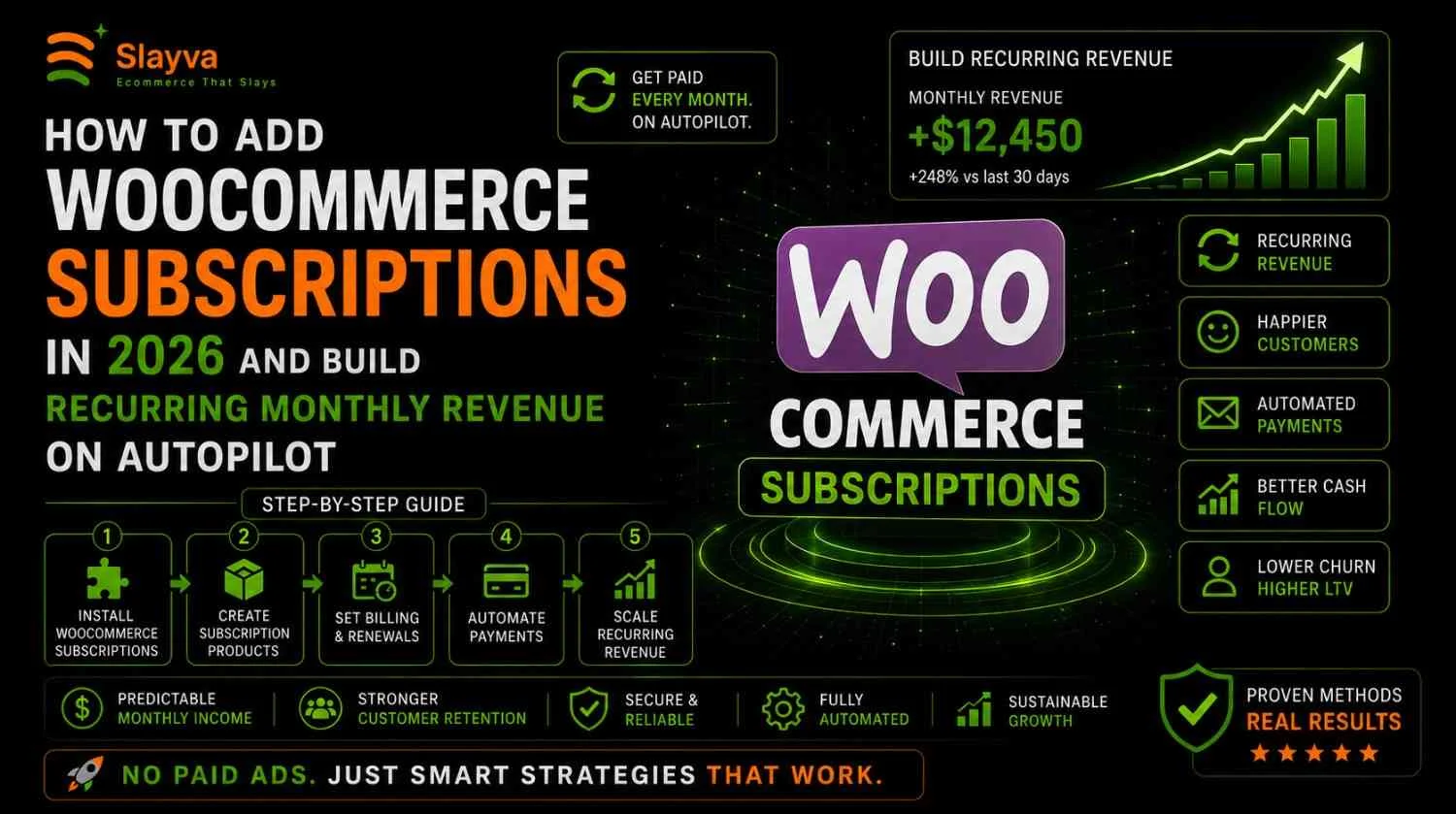
Adding WooCommerce subscriptions changes your business model completely. You stop chasing one-time sales every single day. You start collecting predictable monthly payments while you sleep. You build a revenue base that compounds with every new subscriber instead of resetting to zero each month.
But setting up WooCommerce subscriptions feels technical and overwhelming when you first look at the options. Plugin choices confuse you. Payment gateway configurations frustrate you. Subscription management workflows seem complicated before you understand them.
The reality is simpler than it appears. You need the right plugin, the proper settings, and a clear pricing strategy. This guide walks you through exactly how to add WooCommerce subscriptions in 2026. Every step here works with current versions of WordPress and WooCommerce. You do not need developer skills. You need a clear process and about two hours of focused setup time.
Let me walk you through building your recurring revenue system.
Key Takeaways
- Main Insight: WooCommerce subscriptions convert unpredictable one-time sales into stable monthly recurring revenue. A store with 100 subscribers paying 25 monthly generates 2,500 in predictable income before acquiring any new customers.
- Strategy Tip: Start with simple subscription products before building complex subscription boxes or membership tiers. Master the basic setup first. Add complexity as subscription management experience grows.
- User Benefit: Once configured properly, WooCommerce subscriptions process payments, manage renewals, and handle failed payments automatically. Daily manual work drops significantly compared to one-time product sales.
Why WooCommerce Subscriptions Matter for Your Store in 2026
E-commerce changed significantly between 2023 and 2026. Customer acquisition costs rose across all paid channels. One-time purchase customers became more expensive to acquire and harder to retain. The math shifted in favor of recurring revenue models.
WooCommerce subscriptions solve the core problem of e-commerce uncertainty. When you sell only one-time products, you start each month at zero revenue. You must acquire new customers constantly just to maintain income levels. This creates stress and unpredictable cash flow.
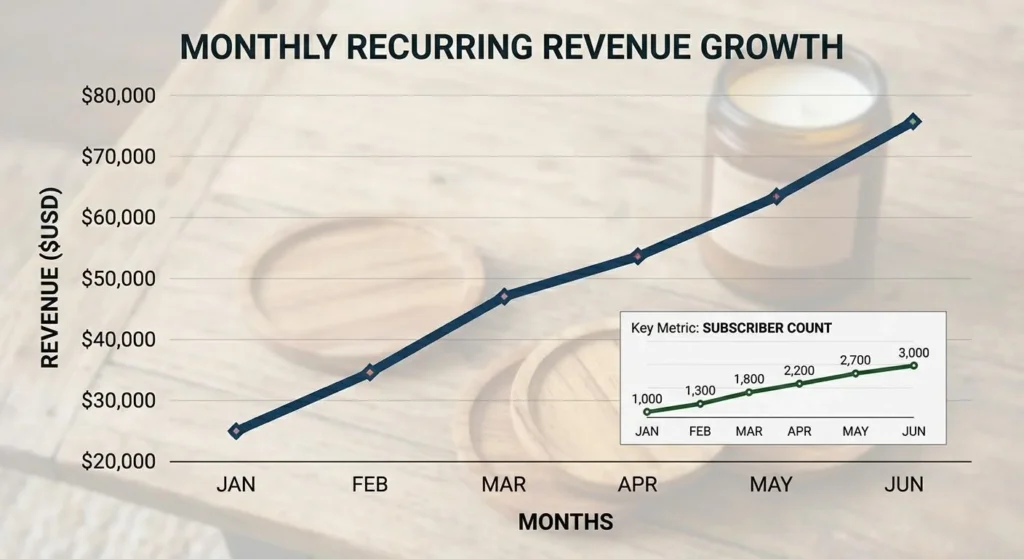
With WooCommerce subscriptions properly configured, your revenue compounds. Each new subscriber adds to your base rather than replacing previous sales. Month one brings 20 subscribers. Month two brings 25 more, building on the original 20. Month three adds 30 more, building on 45 existing subscribers. The growth curve bends upward instead of staying flat.
Store owners using WooCommerce subscriptions report several key benefits. Predictable monthly income allows better inventory planning and business investment decisions. Customer lifetime value increases significantly when subscribers stay for months or years. Marketing costs per dollar of revenue decrease because existing subscribers purchase repeatedly without new acquisition spending.
The platform matured significantly by 2026. WooCommerce subscriptions functionality improved through better plugins, smoother payment processing, and enhanced automation capabilities. What required custom development five years ago now works through simple plugin installations and configuration settings.
How to Set Up Recurring Payments in WooCommerce 2026: Complete Setup Guide
Setting up WooCommerce subscriptions requires specific components working together. Payment processing, subscription management, and customer communication must function as one system.
Prerequisites for WooCommerce Subscriptions
Before adding subscription capabilities, verify these components exist on your WordPress site.
WordPress Installation: Version 6.0 or higher recommended. Keep WordPress updated for security and compatibility with subscription plugins.
WooCommerce Plugin: The free WooCommerce plugin must be installed and configured. Download it from the official WooCommerce Plugin Page. Configure basic settings, including store location, currency, and product types.
SSL Certificate: Your site needs HTTPS security for processing payments. Most hosting providers include free SSL certificates through Let’s Encrypt. Check with your host if SSL is not active.
Payment Gateway: A payment processor supporting recurring billing is required. Not all gateways handle automatic renewals. Choose one specifically compatible with WooCommerce subscriptions.
Choosing a Payment Gateway for Recurring Payments
Payment gateways make or break your WooCommerce subscriptions setup. The wrong gateway creates failed payment issues and manual renewal headaches.
WooPayments: The official WooCommerce payment solution supports recurring billing natively. No additional monthly fees beyond standard processing rates. Integrates directly with WooCommerce subscriptions management. Learn more at the WooPayments Page.
Stripe: The most widely used gateway for WooCommerce subscriptions. Stripe handles recurring billing, payment retries for failed transactions, and automatic customer notifications. Connect through the official Stripe for WooCommerce plugin.
PayPal Checkout: Supports recurring payments with Reference Transactions enabled. This feature requires approval from PayPal. Not automatically available on new accounts. Contact PayPal business support to request Reference Transactions.
Square: Works for WooCommerce subscriptions with limitations. Square supports recurring billing through their API, but integration with WooCommerce requires specific plugins. Research current compatibility before choosing Square.
For beginners starting with WooCommerce subscriptions, Stripe offers the smoothest setup experience. The plugin connects quickly. Recurring billing works automatically. Failed payment retry logic handles most issues without manual intervention. Install the free Stripe Plugin from the WordPress repository.
Best WooCommerce Subscription Plugin for Beginners 2026
Three main plugins power WooCommerce subscriptions functionality. Each serves different needs and budgets.
WooCommerce Subscriptions (Official): The premium plugin from WooCommerce directly. This is the most reliable option for long-term stores. Features include multiple billing schedules, automatic rebilling on failed payments, subscriber account management, and detailed reporting. Pricing starts at $199 annually. Find it on the WooCommerce Subscriptions Page.
YITH WooCommerce Subscription: A strong alternative with both free and premium versions. The free version handles basic WooCommerce subscriptions functionality. The premium version adds advanced features like paused subscriptions, prorated upgrades, and shipping integration. Good for stores wanting to test subscriptions before investing in premium plugins. Available on the YITH Plugin Page.
Subscriptions for WooCommerce by WP Swings: Another option with flexible pricing. Includes features for simple and variable subscription products. Free version available with basic functionality. Premium adds subscription boxes, trial periods, and advanced renewal options.
For most beginners building WooCommerce subscriptions, the official WooCommerce Subscriptions plugin provides the best long-term value. It integrates seamlessly with other WooCommerce extensions. The documentation covers almost every scenario. Support handles complex subscription issues effectively.
Step-by-Step WooCommerce Subscriptions Setup
Follow these steps in order. Each builds on the previous configuration.
Step 1: Install and Activate Your Subscription Plugin
Purchase and download your chosen plugin. Navigate to Plugins, then Add New in your WordPress dashboard. Upload the plugin zip file. Click Install Now. Click Activate. The plugin adds subscription product types to your WooCommerce store automatically.
Step 2: Configure General Subscription Settings
Navigate to WooCommerce, then Settings, then the Subscriptions tab. Configure these key settings:
- Default billing schedule options available to customers
- Subscription renewal notification timing
- Automatic retry settings for failed payments
- Subscription status management preferences
- Customer account permissions for subscription management
Step 3: Connect Your Payment Gateway
Navigate to WooCommerce, then Settings, then Payments. Enable your chosen gateway supporting WooCommerce subscriptions. Enter API keys and authentication details. Test the connection with sandbox or test mode before processing live payments.
Step 4: Create Your First Subscription Product
Navigate to Products, then Add New. Select Simple Subscription or Variable Subscription from the product type dropdown. Configure the basic product information, including title, description, images, and categories.
Set the subscription pricing and billing schedule. Choose a billing period, including daily, weekly, monthly, or yearly intervals. Set billing cycle length. Add sign-up fees if applicable. Configure free trial periods if offering them.
Set subscription expiration settings. Choose between never expiring or expiring after a specific number of payments. This creates different revenue models for your WooCommerce subscriptions strategy.
Step 5: Configure Renewal Notifications
Navigate to WooCommerce, then Settings, then Emails. Customize the subscription-related email templates. Configure renewal reminder timing. Set up payment retry notifications. Personalize email content to match your brand voice.
Step 6: Test the Complete Subscription Flow
Create a test product with a short billing cycle, like one day or one week. Purchase the test subscription using a real payment method. Verify payment processing works correctly. Check that automated emails send properly. Confirm the customer account page shows subscription management options. Cancel the test subscription and verify cancellation processes correctly.
How to Create a Subscription Box with WooCommerce
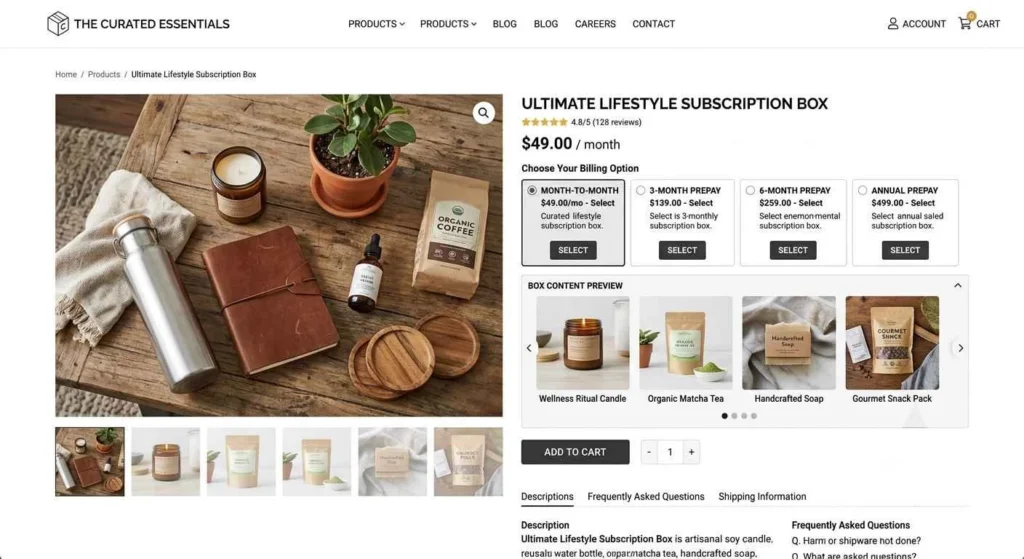
Subscription boxes represent the most popular WooCommerce subscription model. Customers receive curated products regularly. You generate predictable monthly shipments. The combination creates strong customer loyalty and consistent revenue.
Planning Your Subscription Box
Define these elements before building your subscription box product.
Box Theme: Choose a specific theme aligning with your brand and customer interests. Popular themes include self-care boxes, snack boxes, pet supply boxes, book boxes, craft supply boxes, and beauty sample boxes. The theme determines product selection and marketing messaging.
Box Contents: Determine what customers receive in each shipment. Create a consistent value proposition. A 40-monthly box might contain $60- $80 worth of products to create perceived value exceeding the price.
Product Sourcing: Plan inventory acquisition for recurring shipments. Subscription boxes require consistent product availability month after month. Build relationships with suppliers supporting recurring orders. Maintain buffer inventory for unexpected demand spikes.
Pricing Structure: Set pricing covering product costs, shipping, packaging, and profit margin. Common price points for WooCommerce subscription boxes range from 20to60 monthly. Premium boxes reach $100 or more.
Building the Subscription Box Product
Create a new product in WooCommerce. Select Simple Subscription or Variable Subscription product type.
Configure multiple subscription options for customer flexibility. Offer monthly, quarterly, and annual billing with discounts on longer commitments. A monthly box at 35, a quarterly box at 99 (saving $6), and an annual at 360 (saving $60) encourages longer subscriptions.
Write compelling product descriptions explaining what subscribers receive. Include examples of past box contents. Show customer testimonials and unboxing photos. Display the value comparison between subscription price and retail value of included products.
Add product images showing previous box contents, packaging design, and subscriber photos. Visual proof of box quality drives conversions better than text descriptions alone.
Subscription Box Fulfillment Workflow
Create systems for recurring fulfillment before launching. WooCommerce subscriptions automatically process renewal orders. You need workflows ready to fulfill those orders efficiently.
Inventory Tracking: Monitor stock levels for each box component. Set up low-stock alerts. Maintain supplier lead time awareness. Nothing frustrates subscribers more than receiving boxes with missing items or substitutions they did not choose.
Packing Process: Design efficient packing workflows. Create packing checklists for each box variation. Pre-assemble common box components before renewal dates. Batch packing multiple boxes simultaneously reduces per-box time significantly.
Shipping Integration: Connect WooCommerce subscriptions to your shipping platform. Use plugins from the WooCommerce Extensions Store for shipping label generation. Automate tracking number updates. Configure shipping zones and rates for subscription products specifically.
Customer Communication: Automate post-renewal emails. Send tracking information when boxes ship. Include box content reveals. Request feedback and reviews. Build excitement for upcoming boxes through preview content.
Subscription Box Pricing Strategy Table
| Box Type | Price Point | Billing Options | Value Proposition | Best For |
|---|---|---|---|---|
| Sample Box | $15-25/month | Monthly, Quarterly | Try new products monthly | Beauty, snacks, supplies |
| Full Size Box | $35-50/month | Monthly, Quarterly, Annual | Full-size curated products | Hobby supplies, self-care |
| Premium Box | $60-100/month | Quarterly, Annual | Exclusive high-value items | Specialty foods, luxury goods |
| Custom Box | $30-50/month | Monthly, Annual | Personalized selections | Pet supplies, dietary needs |
WooCommerce Monthly Recurring Revenue Setup Guide: Pricing and Retention
Generating consistent monthly recurring revenue requires more than just adding WooCommerce subscriptions. Pricing psychology and retention strategies determine long-term success.
Subscription Pricing Strategies
Pricing determines whether customers subscribe and how long they stay. Use these strategies for maximum recurring revenue.
Discount for Longer Commitments: Offer clear savings on longer billing cycles. Display the monthly equivalent price next to each option. “Monthly at 29/month, Quarterly at $24/month (save 17%), Annual at $19/month (save 34%).” The annual option anchors value while making quarterly appear as the sweet spot.
Tiered Subscription Levels: Create multiple subscription tiers at different price points. Basic tier provides core value. The premium tier adds exclusive benefits. Pro tier includes everything plus VIP treatment. Each tier should offer clear additional value justifying the price increase. This structure increases average revenue per subscriber.
Founding Member Pricing: Offer special pricing to initial subscribers. This builds your subscriber base quickly during launch. Limited-time founding member rates create urgency. Early subscribers feel special and remain loyal longer. Set clear expectations that pricing applies only to early adopters.
Add-on Products for Subscribers: Create products available only to active subscribers. Limited edition items, early access to new products, and subscriber-only discounts increase perceived subscription value. These add-ons increase average revenue beyond the base subscription price.
Reducing Subscriber Churn
Subscriber retention determines whether WooCommerce subscriptions generate long-term recurring revenue or become a revolving door of acquisition and cancellation.
Onboarding Experience: The first days after subscription determine retention likelihood. Send a welcome email sequence introducing your brand story. Explain how to access subscription benefits. Set expectations for upcoming renewals and shipments. Answer common questions before they get asked.
Ongoing Value Communication: Remind subscribers what they receive beyond the product. Share usage tips, recipes, or tutorials relevant to subscription products. Feature subscriber success stories. Create community connections among subscribers. The perceived value extends beyond the physical product delivered.
Easy Account Management: Provide a clear customer account page for managing WooCommerce subscriptions. Allow subscribers to pause deliveries, skip months, change frequencies, and update payment methods without contacting support. The easier you make subscription management, the longer subscribers stay.
Exit Surveys: Ask departing subscribers why they canceled. Use free survey tools like Google Forms to collect feedback. Analyze cancellation reasons for patterns. Address common issues in product offerings or communication. Each cancellation teaches something about improving retention.
Win-Back Campaigns: Contact canceled subscribers with special offers after a cooling period. A “we miss you” email with a return incentive recaptures subscribers who canceled for non-product reasons. Many canceled subscribers return when offered a discount or upgraded experience.
Recurring Revenue Growth Table
| Month | New Subscribers | Cumulative Subscribers | Monthly Revenue at $25 | Total Revenue |
|---|---|---|---|---|
| 1 | 20 | 20 | $500 | $500 |
| 2 | 25 | 45 | $1,125 | $1,625 |
| 3 | 30 | 75 | $1,875 | $3,500 |
| 4 | 30 | 105 | $2,625 | $6,125 |
| 5 | 35 | 140 | $3,500 | $9,625 |
| 6 | 35 | 175 | $4,375 | $14,000 |
Automating WooCommerce Subscriptions Management
Manual subscription management becomes impossible as subscriber counts grow. Automation handles routine tasks while you focus on growth.
Automated Payment Recovery
Failed payments represent the biggest revenue leak in WooCommerce subscriptions. Cards expire. Credit limits get reached. Banks flag transactions. Without automated recovery, these subscribers cancel unintentionally.
Configure automatic payment retry settings. Set retry attempts to three to five times over several days. Failed payments often clear on retry when card issues resolve. Each successful retry recovers revenue without any effort.
Send automated payment failure notifications to customers. Include clear instructions for updating payment methods. Link directly to the payment update page. Make fixing payment issues as simple as possible for subscribers.
Use the built-in retry features of your payment gateway. Stripe and WooPayments include sophisticated retry logic. These systems attempt to make payments at optimal times based on card issuing patterns. Activate these features during the initial WooCommerce subscriptions setup.
Automated Customer Communication
Set up email automations handling routine subscriber communication. Configure through WooCommerce email settings or dedicated marketing automation tools.
Pre-Renewal Notifications: Send reminder emails before subscription renewals. Give subscribers time to manage their subscription before payment processes. Include renewal amount, date, and payment method. Link to subscription management page.
Renewal Confirmation: Send confirmation after successful renewal payments. Include order details, shipping estimates, and next renewal date. This builds trust by confirming transaction completion.
Shipment Notifications: For physical subscription products, automate tracking updates. Integrate shipping platforms with WooCommerce through plugins. Subscribers receive tracking information without manual entry.
Engagement Emails: Schedule content emails between renewals. Share product usage guides, community highlights, and upcoming product previews. These maintain engagement between billing cycles.
Key Automation Tools Table
| Automation Task | Tool | Setup Complexity | Impact |
|---|---|---|---|
| Payment Recovery | Stripe/WooPayments | Low | High |
| Renewal Emails | WooCommerce Emails | Low | Medium |
| Shipping Updates | ShipStation Integration | Medium | Medium |
| Cart Recovery | Abandoned Cart Plugins | Low | High |
| Engagement Emails | Mailchimp/MailPoet | Medium | Medium |
Frequently Asked Questions
What is the best plugin for WooCommerce subscriptions?
The official WooCommerce Subscriptions plugin provides the most reliable solution. It includes all core features needed for recurring payments, subscription management, and automated renewals. Find it on the WooCommerce Subscriptions Page. Free alternatives exist but lack advanced features like payment retry and subscription switching.
How much does it cost to set up WooCommerce subscriptions?
Basic WooCommerce subscriptions set up costs approximately 199 annually for the official plugin plus standard payment processing fees of 2.90.30 per transaction. WordPress hosting costs vary. The total investment runs 300−500 for the first year, including hosting, plugin, and setup time.
Can I offer free trials with WooCommerce subscriptions?
Yes. Both the official plugin and major alternatives support free trial periods. Configure trial length during product setup. Set trials from one day to several months. Require a payment method at signup to reduce fake trial accounts. Payment begins automatically after the trial period ends.
How do I handle subscription cancellations and refunds?
WooCommerce subscriptions include built-in cancellation management. Process cancellations through the WordPress admin or allow customer self-cancellation through account pages. Configure cancellation reasons tracking for retention insights. Handle refunds through your payment gateway dashboard following standard refund procedures.
What happens when a subscriber payment fails?
Configured correctly, WooCommerce subscriptions automatically retry failed payments multiple times. The system suspends subscriptions after exhausting retry attempts. Subscribers receive automated emails requesting payment method updates. Reactivating suspended subscriptions restores access immediately upon successful payment.
Can I switch subscribers between different subscription plans?
Yes. The official plugin supports subscription switching and upgrades. Customers upgrade or downgrade through their account page. The system calculates prorated amounts automatically. The upgrades process immediately. Downgrades take effect at the next renewal date.
Do WooCommerce subscriptions work with all payment gateways?
No. Only gateways supporting recurring billing work with WooCommerce subscriptions. Stripe, WooPayments, and PayPal Checkout with Reference Transactions provide full support. Other gateways require checking recurring payment compatibility before committing to the platform.
How do I report and track WooCommerce subscriptions revenue?
WooCommerce includes basic subscription reporting. Navigate to Analytics and then Subscriptions for key metrics. Use the WooCommerce Analytics documentation for setup guidance. For advanced reporting, connect Google Analytics or dedicated subscription analytics plugins tracking monthly recurring revenue and churn rates.
External Resources
Download the free WooCommerce plugin from the WooCommerce Plugin Page to set up your store foundation.
Purchase the official subscription plugin on the WooCommerce Subscriptions Page for full recurring payment functionality.
Install the free Stripe payment gateway from the Stripe Plugin Page for recurring billing processing.
Explore WooPayments for native payment processing on the WooPayments Page with built-in subscription support.
Browse shipping and fulfillment extensions on the WooCommerce Extensions Store for subscription box logistics.
Set up email marketing automation with Mailchimp for subscriber engagement and retention campaigns.
Create customer feedback surveys using Google Forms to collect cancellation reasons and improvement suggestions.
Read official documentation on the WooCommerce Analytics page for subscription revenue tracking.
Compare alternative subscription plugins on the YITH Plugin Page for free and premium options.
Learn subscription strategies from the WooCommerce Blog for ongoing optimization guidance.
Conclusion
Adding WooCommerce subscriptions transforms your store from chasing one-time sales into building predictable monthly recurring revenue. The setup requires choosing the right plugin, connecting a compatible payment gateway, and properly configuring subscription products. The ongoing work involves optimizing retention, automating communications, and recovering failed payments.
Start with simple subscription products before building complex boxes or membership tiers. Install the official WooCommerce Subscriptions plugin. Connect Stripe or WooPayments for payment processing. Create your first subscription product with a straightforward monthly billing cycle. Test the complete customer experience from purchase to renewal to cancellation.
Once basic WooCommerce subscriptions work smoothly, expand into subscription boxes, tiered pricing, and automated marketing. Each addition builds on the foundation of reliable recurring payments processing.
The stores generating significant monthly recurring revenue started with one simple subscription product. They optimized the customer experience over time. They added complexity gradually as subscriber counts grew. You can follow the same path.
Your next step: Install WooCommerce if it is not already active. Purchase your chosen subscription plugin. Connect your payment gateway. Create your first subscription product today. The recurring revenue journey starts with one subscriber.