Introduction
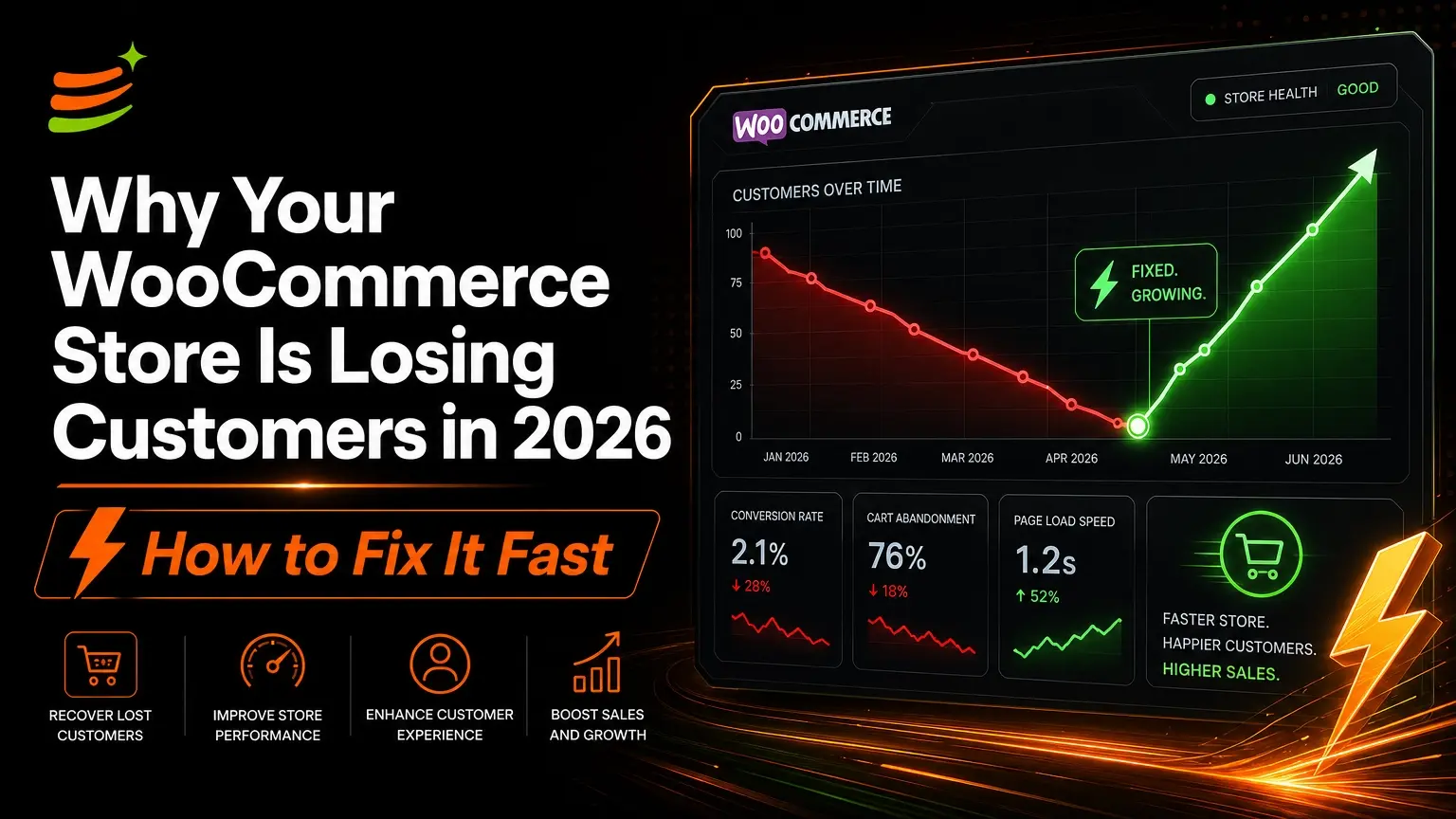
You have built a beautiful WooCommerce store. Your products are competitively priced. You are running ads and seeing traffic arrive.
But when you check your analytics, the numbers tell a frustrating story.
Visitors land on your product pages. They browse. Some even add items to their cart.
Then they disappear without completing the purchase. Your WooCommerce store not converting is not just disappointing.
It is actively costing you money every single day that the problem goes unfixed. Every visitor who leaves without buying represents a customer acquisition cost with zero return.
“In 2026, WooCommerce store owners are discovering that having traffic is not the same as having sales. The gap between visits and conversions is where most revenue is being lost.”
Here is the uncomfortable truth: your store almost certainly has conversion killing problems that you cannot see because you are too close to it.
The good news is that these problems follow predictable patterns, and they are fixable.
Today we are diagnosing exactly why your WooCommerce store not converting is happening. We are walking through seven critical fixes you can implement immediately to stop the bleeding and recover lost revenue.
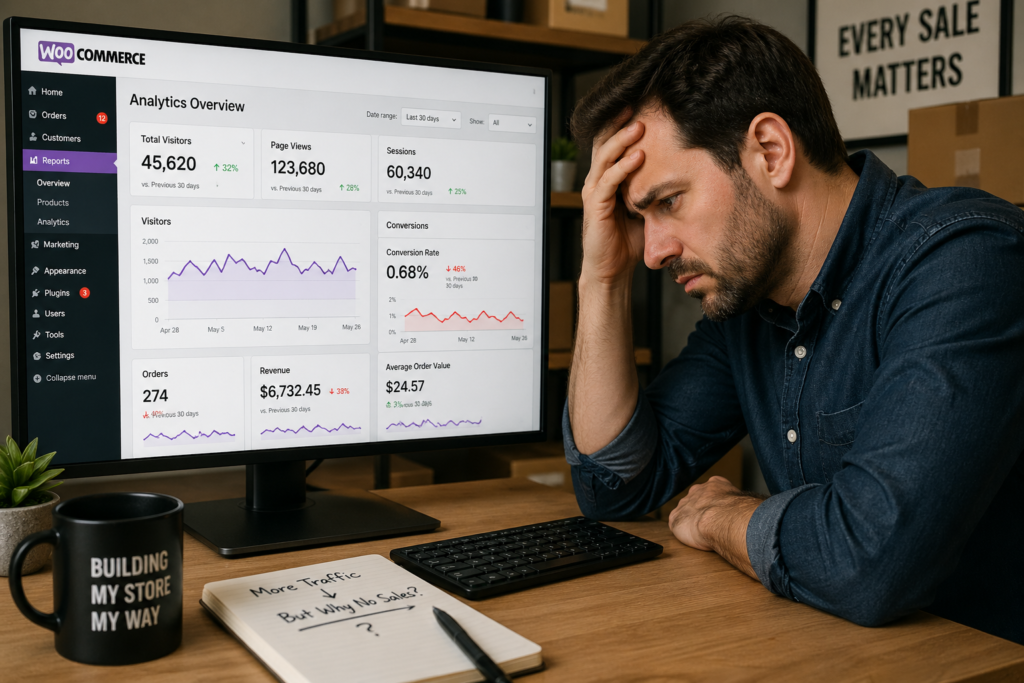
Why Customers Are Abandoning My WooCommerce Store
Before diving into specific fixes, it helps to understand the psychology of the modern WooCommerce shopper in 2026.
Customer expectations have shifted dramatically. Stores that have not adapted are watching their conversion rates steadily decline.
This is the core question behind why customers are abandoning my WooCommerce store. Understanding the answer is essential before any fix can work.
The 2026 Expectation Gap
Online shoppers today are conditioned by experiences on platforms like Amazon, Shopify, and major direct to consumer brands.
They expect fast loading pages. They demand seamless mobile experiences. They want transparent pricing and friction free checkout.
When your WooCommerce store not converting becomes the norm rather than the exception, you are usually failing to meet one or more of these baseline expectations.
Research from Baymard Institute on ecommerce conversion confirms that the average cart abandonment rate hovers around 70% .
For WooCommerce stores with unoptimized experiences, that number can climb even higher. This directly explains why customers are abandoning my WooCommerce store at alarming rates.
The Google Web.dev platform has established clear performance benchmarks. These benchmarks directly impact both user experience and search rankings.
Speed optimization is now a conversion factor and an SEO requirement simultaneously.
Silent Revenue Killers Most Store Owners Miss
The most dangerous problems are the ones you do not know exist.
While most store owners obsess over product images and ad copy, the real reasons for a WooCommerce store not converting often hide in technical details. This is why customers are abandoning my WooCommerce store without obvious explanation.
“The revenue you are losing to fixable problems is not coming back on its own. Every day without addressing these issues costs you real money.”
Common silent revenue killers include:
- Slow hosting infrastructure that causes pages to load slowly and visitors to bounce before seeing products
- Mobile experience issues where buttons and forms break on phones, preventing purchases entirely
- Checkout friction with too many steps or required fields causing cart abandonment
- Missing trust signals like no reviews, unclear policies, or hidden contact information
- Plugin conflicts that stop add to cart or checkout buttons from working
- Weak product presentation where pages fail to convince visitors to buy
Each of these problems silently filters out potential customers.
The cumulative effect is devastating. Visitors arrive ready to buy, encounter friction they may not even consciously recognize, and leave without understanding why they lost confidence.
How to Fix WooCommerce Store Losing Sales in 2026
Addressing a WooCommerce store not converting requires systematic diagnosis rather than random tweaking.
These seven fixes directly address how to fix WooCommerce store losing sales 2026. Each targets a specific conversion killer with actionable steps.
1. Hosting Infrastructure That Cannot Handle Your Traffic
Your hosting environment is the foundation everything else rests upon.
When your hosting is inadequate, every other optimization effort is built on sand. A WooCommerce store not converting often traces back to server performance problems.
The symptoms are easy to spot once you know what to look for:
- Pages that take longer than three seconds to load on mobile
- Time to First Byte (TTFB) exceeding 200 milliseconds
- Slowdowns during peak traffic hours or sale events
- Admin panel lag when managing products or orders
- Frequent downtime or 500 series errors during checkout
WooCommerce is resource intensive compared to simpler platforms. Each product variation, each plugin, and each concurrent visitor consumes server resources.
Shared hosting plans that work fine for simple WordPress sites often buckle under the demands of an active WooCommerce store.
The fix involves upgrading to WooCommerce optimized hosting:
- Research managed WooCommerce hosts like Rocket.net or Kinsta
- Look for server configurations specifically tuned for ecommerce workloads
- Verify built in caching layers and CDN integration are included
- Choose plans with resource allocation that scales with your traffic
According to Portent’s page speed study, a site loading in one second converts three times more than one loading in five seconds.
Upgrading hosting often delivers the single largest conversion improvement of any change you can make. This is frequently the answer to how to fix WooCommerce store losing sales 2026 for stores that have never addressed infrastructure.
2. Mobile Experience That Drives Customers Away
Mobile commerce now represents the majority of ecommerce traffic.
If your WooCommerce store not converting shows a significant gap between mobile and desktop conversion rates, your mobile experience is almost certainly the culprit.
“Do not assume your theme’s ‘mobile responsive’ claim means your store actually works well on phones. Test the entire purchase flow on an actual device.”
The most common mobile killers in WooCommerce stores:
- Product images that do not resize properly, so visitors cannot see products clearly
- Add to cart buttons that disappear below the fold, making purchasing impossible
- Checkout form fields too small to tap accurately with a thumb, causing abandonment
- Popups that cannot be closed on mobile devices, driving visitors away in frustration
- Navigation menus that collapse into unusable hamburger icons
The fix starts with rigorous mobile testing, then specific improvements:
- Test the entire purchase flow on an actual mobile device, not just an emulator
- Note every moment of friction from landing to checkout completion
- Switch to a mobile first WooCommerce theme like Storefront or Shoptimizer
- Ensure all buttons meet minimum tap target sizes of 44 by 44 pixels
- Reduce form fields to the absolute minimum required for order completion
- Move critical calls to action above the fold on mobile viewports
For stores with high mobile traffic and a persistent WooCommerce store not converting problem, WooCommerce’s mobile optimization guide provides platform specific recommendations that go beyond generic advice.
3. Checkout Friction That Triggers Abandonment
The checkout page is where conversion happens or dies.
After a customer has decided to purchase, navigated your store, and added items to their cart, they arrive at checkout already committed.
Losing them at this stage is the most painful kind of conversion failure. Understanding this answers why customers are abandoning my WooCommerce store at the final hurdle.
When analyzing checkout friction, examine these common problems:
- Forced account creation before purchase is allowed, creating privacy concerns and extra steps
- Excessive form fields that feel invasive, time consuming, and unnecessary
- Shipping costs appearing only at the final step, causing sticker shock
- Limited payment options that exclude customer preferred methods
- Confusing or unclear error messages when fields are incomplete
- No guest checkout option, creating a barrier for first time buyers
The fix involves streamlining the checkout experience aggressively:
- Enable guest checkout in WooCommerce settings immediately
- Reduce checkout fields to name, email, shipping address, and payment
- Use address autocomplete to speed up form completion
- Display shipping costs early, ideally on the cart page
- Add multiple payment gateways including digital wallets like Apple Pay and Google Pay
- Install a checkout optimization plugin like Fluid Checkout for WooCommerce
Baymard’s checkout usability research found that the average ecommerce checkout contains 14.88 form fields, while the ideal sits around 7 to 8.
Every unnecessary field reduces conversion rates. Review your checkout flow today and remove any field that is not absolutely essential to solving a WooCommerce store not converting problem.
4. Slow Site Speed Killing First Impressions
Speed is not just a technical metric. It is a conversion signal.
When your WooCommerce store not converting coincides with slow page loads, you have identified a direct cause and effect relationship.
WooCommerce stores face unique speed challenges because they are database intensive. Each page load typically queries product data, customer information, cart contents, and plugin functionality simultaneously.
Critical speed optimization steps for stopping customer loss:
- Implement full page caching through a plugin like WP Rocket
- Convert images to WebP format for smaller file sizes
- Minimize and combine CSS and JavaScript files
- Remove unused plugins that load resources on every page
- Upgrade to PHP 8.2 or higher for significant performance gains
- Use a Content Delivery Network to serve assets from locations near visitors
“A page loading in two seconds rather than five seconds will consistently outperform its slower competitor, all else being equal.”
WP Rocket provides comprehensive optimization suites that handle most speed issues without requiring developer intervention.
The plugin includes WooCommerce aware features like automatic cart and checkout exclusion from caching, preventing the conflict issues that generic caching solutions create.
Testing your speed improvements is essential:
- Use Google PageSpeed Insights for initial diagnostics
- Test with GTmetrix for detailed waterfall analysis
- Measure before and after scores for every optimization
- Track the correlation between speed improvements and conversion rate changes
Addressing slow speed directly answers how to fix WooCommerce store losing sales 2026 for many merchants who have never diagnosed their load times.
5. Trust Signals That Are Missing or Broken
Ecommerce transactions require trust.
Customers hand over payment information, personal details, and shipping addresses to complete strangers.
When your WooCommerce store not converting shows high traffic and engagement but low checkout completion, trust deficits are often the hidden cause.
Essential trust signals that every WooCommerce store needs:
- SSL certificate properly installed and displaying the padlock icon across the entire site
- Customer reviews displayed prominently on product pages with photo and video capability
- Return and refund policies clearly linked in the footer and on product and checkout pages
- Contact information that is easy to find and verify in the header or footer
- Trust badges from recognized security providers displayed at critical conversion points
- Professional product photography showing products from multiple angles and in use
The fix requires an audit of every trust touchpoint in your purchase flow:
- Verify SSL certificate validity and HTTPS display in all browsers
- Audit return and refund policy visibility on product and checkout pages
- Add contact information prominently in the header or footer
- Display trust badges at critical conversion points
- Install Customer Reviews for WooCommerce to add review functionality
Adding customer reviews to product pages is one of the highest impact trust improvements available.
Products with reviews consistently outperform identical products without them, sometimes by significant margins. This directly addresses why customers are abandoning my WooCommerce store during the final decision phase.
6. Plugin Conflicts Silently Breaking Functionality
WooCommerce’s plugin ecosystem is both a strength and a vulnerability.
The flexibility to add almost any feature is powerful. However, each installed plugin introduces potential conflicts that can silently break conversion critical functionality.
Signs that plugins may be causing your WooCommerce store not converting:
- Add to cart buttons that work intermittently or not at all due to JavaScript conflicts
- Checkout pages that fail to load after recent plugin updates due to payment gateway conflicts
- Payment processing errors that appear inconsistently from multiple payment plugin conflicts
- Product pages displaying incorrectly or missing elements from theme and plugin incompatibility
- Admin functionality that conflicts with front end performance due to caching or optimization conflicts
Diagnosing plugin conflicts requires systematic testing:
- Temporarily switch to a default WordPress theme like Storefront
- Disable all non essential plugins simultaneously
- If the problem disappears, re enable plugins one at a time
- Test thoroughly after each reactivation to identify the conflicting combination
Prevention strategies to maintain conversion rates:
- Limit plugins to essentials only, as fewer plugins mean fewer conflicts
- Research plugin compatibility thoroughly before installation
- Maintain regular backups before applying any updates
- Use a staging environment to test plugin changes safely before production
- Remove deactivated plugins rather than leaving them installed as dormant code
7. Weak Product Presentation That Fails to Sell
Sometimes a WooCommerce store not converting comes down to the simplest explanation.
Your product pages are not convincing enough.
Beautiful traffic and flawless technical performance still fail if visitors arrive at pages that do not effectively communicate value.
Elements of high converting product pages include:
- Professional images showing products from multiple angles and in use
- Video demonstrations for products where function matters
- Specific, detailed descriptions that answer questions and overcome objections
- Price justification that explains why the product is worth its cost
- Scarcity or urgency indicators when legitimate
- Clear, prominent add to cart buttons that stand out visually
- Social proof through reviews, testimonials, and purchase counters
“Study top performing competitors in your niche. What information do they provide? How do they structure their pages? What objections do they anticipate and address?”
The fix involves rebuilding product pages with conversion as the primary goal:
- Audit competitor product pages for structure and content ideas
- Add multiple product images including lifestyle and detail shots
- Write descriptions that answer every pre purchase question
- Include video demonstrations where product function matters
- Verify variation specific images display for every option
- Add customer reviews and testimonials prominently
For variable products, ensure each variation has its own image and description.
Customers should never have to guess what a specific color or size option looks like. This is a fundamental answer to how to fix WooCommerce store losing sales 2026 through better merchandising.
WooCommerce Slow Site Speed Fix for Beginners
Speed optimization can feel intimidating for store owners without technical backgrounds.
Here is a beginner friendly approach that delivers meaningful improvements without requiring coding knowledge. This is the essential WooCommerce slow site speed fix for beginners that requires zero technical expertise.
“Start with no code fixes. Escalate to developer support only for issues beyond your comfort level. Most speed problems can be solved without touching a line of code.”
Step One: Measure Your Starting Point
Before making changes, establish a baseline. Visit Google PageSpeed Insights and run a test on your homepage, a product page, and your checkout page.
Record both the mobile and desktop scores, along with the specific recommendations provided. Documenting your starting point makes improvement visible.
Step Two: Image Optimization
Product images are typically the largest files on WooCommerce stores. They are also the easiest to optimize for significant speed gains.
Beginner friendly image optimization steps:
- Install the Smush or ShortPixel plugin for automatic compression
- Enable lazy loading so images only download when visible on screen
- Convert existing images to WebP format for smaller file sizes
- Resize product images to match display dimensions rather than uploading oversized files
Step Three: Caching Implementation
Caching stores pre built versions of your pages so they load instantly rather than being assembled from scratch for each visitor.
Simple caching setup with WP Rocket:
- Install WP Rocket, the most beginner friendly caching plugin available
- Enable page caching, browser caching, and file optimization
- Exclude cart, checkout, and account pages automatically
- Schedule automatic cache clearing to keep content fresh
Step Four: Plugin Audit
Remove everything you do not strictly need:
- Deactivate and delete any plugins not actively in use
- Test your store after each removal to confirm nothing breaks
- Consolidate functionality into fewer, better maintained plugins
- Replace bloated plugins with lightweight alternatives
Step Five: Hosting Evaluation
If your store still loads slowly after completing steps one through four, your hosting is the bottleneck.
Consider migrating to a WooCommerce optimized host. Many offer free migration services, and the conversion improvement typically justifies the cost within the first month.
This WooCommerce slow site speed fix for beginners approach systematically addresses the most common performance bottlenecks.
WooCommerce Conversion Rate Optimization Tips 2026
Beyond fixing specific problems, sustainable conversion improvement requires ongoing optimization.
These WooCommerce conversion rate optimization tips 2026 provide a framework for continuous improvement when your store is underperforming.
Test Everything Systematically
A/B testing removes guesswork from conversion optimization. Run controlled experiments comparing one variable at a time.
Elements worth testing on product and checkout pages:
- Button colors, text, and placement for potential improvements of 5 to 15 percent
- Product image styles and arrangements for potential improvements of 10 to 20 percent
- Headline variations on landing pages for potential improvements of 15 to 30 percent
- Pricing display formats for potential improvements of 10 to 25 percent
- Checkout flow arrangements for potential improvements of 20 to 40 percent
Tools like Nelio A/B Testing integrate directly with WooCommerce and simplify experiment creation and analysis.
Document results to build institutional knowledge about what works for your specific audience.
Personalize the Shopping Experience
Returning visitors should see a different experience than first time browsers.
Personalization opportunities to implement:
- Display recently viewed products for easy return navigation
- Recommend products based on browsing or purchase history
- Show location relevant shipping information
- Present returning customer discounts or loyalty rewards
Personalization plugins extend WooCommerce’s default functionality to create these tailored experiences.
The investment typically pays for itself through increased repeat purchase rates. These WooCommerce conversion rate optimization tips 2026 work best when layered on top of the technical fixes covered earlier.
Build Recovery Automations
Not every visitor converts on their first visit. Recovery automations capture revenue that would otherwise be permanently lost.
Essential recovery automations to set up immediately:
- Abandoned cart email sequences with product images and direct checkout links that recover 5 to 15 percent of abandoned carts
- Browse abandonment emails for visitors who viewed products without purchasing
- Post purchase upsell recommendations based on what customers just bought that can increase average order value by 10 to 20 percent
- Win back campaigns for lapsed customers that recover 5 to 10 percent of inactive buyers
WooCommerce integrates with email marketing platforms that provide this automation functionality.
Setting up these sequences creates a conversion safety net that works continuously in the background.
Conclusion
A WooCommerce store not converting is a symptom, not a diagnosis. The underlying causes are specific, identifiable, and fixable.
Your job is systematic investigation rather than random optimization.
The seven fixes covered in this guide address the most common reasons a store loses customers in 2026:
- Inadequate hosting that slows down your entire store and drives visitors away
- Poor mobile experiences that break on the devices most customers use
- Checkout friction that triggers abandonment at the final hurdle
- Slow page speed that kills first impressions and search rankings
- Missing trust signals that prevent customers from feeling safe enough to buy
- Plugin conflicts that silently break critical functionality
- Weak product presentation that fails to convince visitors to purchase
Each alone can tank conversion rates. In combination, they explain most cases of a WooCommerce store not converting despite healthy traffic.
“The stores winning in 2026 are not necessarily the ones with the best products or the biggest marketing budgets. They are the ones that have systematically removed every unnecessary obstacle between a customer’s desire and their purchase.”
Start your diagnostic process today:
- Run a speed test on your product pages
- Complete a purchase on your own store using a mobile device
- Audit every field in your checkout flow
- Review your plugin list for unnecessary additions
- Verify every trust signal on your site is present and working
The revenue you are losing to fixable problems is not coming back on its own. Every day without addressing these issues costs you real money.
Pick the single most impactful fix from this guide based on your store’s specific symptoms. Implement it before the end of the week. Track the results. Then move on to the next one.
A WooCommerce store not converting is a problem with a solution. Your customers are telling you what is wrong through their behavior.
You just need to listen and act.
Frequently Asked Questions About WooCommerce Store Not Converting
Why is my WooCommerce store getting traffic but no sales?
When your WooCommerce store not converting despite healthy traffic, the problem typically falls into one of three categories.
Technical issues like slow loading or broken checkout prevent purchases from completing. Trust deficits like missing contact information or unclear policies create last second hesitation. Relevance gaps occur when your traffic sources attract visitors who are not genuinely interested in your products.
Diagnose by category before attempting fixes. Each category requires a different solution approach. Understanding why customers are abandoning my WooCommerce store starts with identifying which category applies to your situation.
How do I fix high cart abandonment in WooCommerce?
Cart abandonment represents the most recoverable form of lost revenue when your WooCommerce store not converting at the final stage.
Start with these immediate actions:
- Enable abandoned cart recovery emails through your email marketing platform
- Include product images and direct checkout links in recovery emails
- Add gentle urgency without false scarcity
Then address the checkout friction that caused abandonment:
- Enable guest checkout
- Reduce form fields to essentials only
- Display shipping costs early in the process
- Add multiple payment options including digital wallets
This directly answers how to fix WooCommerce store losing sales 2026 at the point of maximum revenue leakage.
What is a good conversion rate for a WooCommerce store?
Average WooCommerce conversion rates range from 1% to 2% across industries.
Below average stores convert at under 1 percent and need immediate attention. Average stores sit between 1 and 2 percent, with room for optimization. Good stores reach 2 to 3 percent with a solid foundation for growth. Excellent stores achieve 3 to 5 percent as top performers. Exceptional stores exceeding 5 percent are industry leaders.
Top performing stores reach 3% to 5% through continuous optimization. However, conversion rates vary significantly by product category, price point, and traffic source.
Compare your performance against your own historical data rather than industry averages. Consistent improvement matters more than hitting a specific benchmark.
How can I speed up my WooCommerce store without coding?
Several no code solutions exist for the WooCommerce slow site speed fix for beginners.
The three highest impact no code optimizations:
- Install a caching plugin like WP Rocket and enable its default settings in about 30 minutes
- Use an image optimization plugin like Smush or ShortPixel to compress product images automatically in about 30 minutes
- Upgrade to quality hosting with built in performance features, which takes 1 to 3 days for migration
These three steps address the majority of speed issues without requiring any coding knowledge. This WooCommerce slow site speed fix for beginners approach resolves most performance related conversion problems.
Do I need a developer to optimize my WooCommerce store?
Many conversion optimization tasks are accessible to non technical store owners.
You can handle it independently:
- Speed optimization through plugins
- Content improvements and product descriptions
- Checkout configuration
- Trust signal implementation
Developer assistance becomes valuable for:
- Custom functionality development
- Complex theme modifications
- Database optimization
- Advanced performance tuning
Start with the no code fixes and escalate to developer support for issues beyond your comfort level.
How often should I check my WooCommerce store for conversion problems?
Monthly performance reviews catch most issues before a WooCommerce store not converting becomes a crisis.
Monthly review checklist:
- Speed test your key pages including homepage, product pages, and checkout
- Complete a test purchase to verify checkout functionality
- Review analytics for sudden changes in conversion rate
- Check abandonment patterns for emerging issues
After plugin or theme updates, perform immediate spot checks on critical functionality like add to cart and checkout.
Will upgrading my hosting really improve conversions?
Yes, and the impact is often dramatic.
Portent’s research demonstrates that conversion rates drop sharply as page load times increase. A one second site converts three times better than a five second site. Two second sites convert at double the rate of five second sites. Seven second sites fall below baseline conversion rates.
When your WooCommerce store not converting coincides with slow page speeds, hosting upgrades frequently deliver the fastest and largest return on investment of any optimization effort. This is consistently the answer to how to fix WooCommerce store losing sales 2026 for stores on inadequate hosting.